The MetaHuman
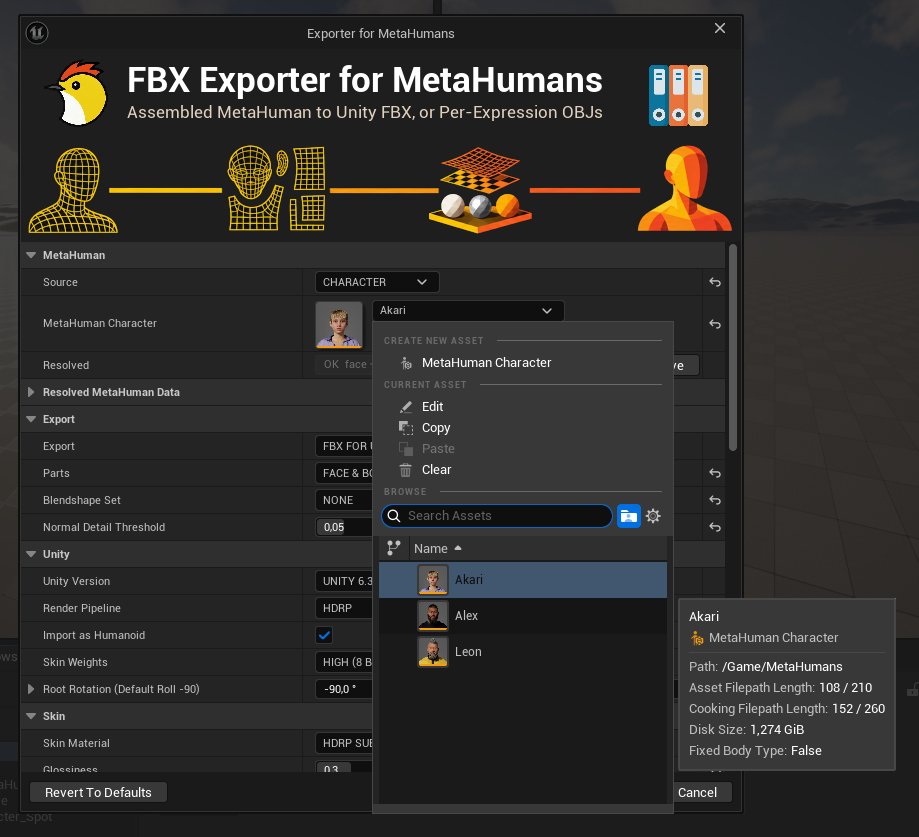
The MetaHuman group at the top of the window is where you point the exporter at a character. You set one field, and everything else is found from it.
Source
Source picks how you point at the character.
- ASSEMBLED takes a MetaHuman you have already assembled, the
BP_<Name>Blueprint you would drag into a level, and exports it as it stands. - CHARACTER takes the MetaHuman Character you edit, and exports the assembled output built from it.
When the Character Is Newer Than Its Assembly
With CHARACTER, the export checks the assembly before it starts. If the character has never been assembled, or was edited after it was last assembled, an Assemble MetaHuman prompt says so.
When the character can be assembled, the prompt offers a Fidelity choice and Assemble, which builds it now. The build takes several minutes, and the editor is unresponsive until it finishes.
When it cannot be assembled yet, the prompt says why and offers a Texture Resolution choice and Download Textures instead. The download runs in the background, so the editor stays usable, and you run the export again once it finishes.
Either way, Use Stale exports the older assembly as it is, when one exists, and Cancel stops the export.
Re-assembling overwrites the assembled assets under /Game/MetaHumans/Akari.
The build takes several minutes, and the editor is unresponsive until it finishes.
The Eye Tuner runs the same check when it opens.
Picking the Character
The field under Source is MetaHuman Assembled or MetaHuman Character, depending on the Source you chose. Pick the character there.
If a BP_<Name> Blueprint is selected in the Content Browser when you open the window, it is filled into MetaHuman Assembled for you.
Resolved
The Resolved line shows what the exporter found for the character: the face, the body, how many hair and brow cards, and how many card atlases. The window resolves the character as it opens. Press Resolve to look again after you change the MetaHuman.
Resolved MetaHuman Data
A collapsed group under the MetaHuman holds what the resolve found: Face Mesh, Body Mesh, Hair and Brow Cards and Card Atlases. They are filled in for you.
Set one by hand only to export a part the resolve cannot find, such as a mesh moved out of the MetaHuman folders. Empty the cards list to export the head without them, or point it at other cards to export a different groom. Without the card atlases the cards still export, but their Unity materials cannot be built.
For an FBX export the group also holds the Normal Maps list, covered in Materials & Textures.