The Brain
One component per character, and everything else runs through it. What it holds, what it coordinates, and what each section of its inspector is for.
The brain does not drive blendshapes and does not decide what the face looks like. It coordinates: it owns the clock the whole face runs on, keeps FaceCue and your animation out of each other's way, holds the facts every driver needs to agree on, and takes in what your game knows.
This page follows the order the inspector draws, so you can read it beside the component.
Talking Detection
Whether the character is speaking right now. This section is where that one fact comes from.
It decides from the character's own audio. Clip Playback, the default, counts the character as speaking the whole time a voice clip plays, pauses included. Amplitude counts it as speaking whenever the voice is louder than a level, which needs no clip but also hears a loud laugh or a cough.
Everything that changes while a character speaks starts from here. Whether it is listening or idle is worked out further on, in its Conversant State.
Facial Timestep
The clock. How often the simulation advances, how often it reaches the rig, and the smoothing between the two.
This is the single most consequential setting on the component and it has a page of its own: One Clock.
Animator Coexistence
Where FaceCue sits relative to Unity's animator.
Authored animation and the facial performance combine instead of overwriting each other. This section is where that relationship is set, and where you say who owns a bone when both could claim it.
It matters most on characters with hand-authored head motion. Get it wrong and either your animation is ignored or the face is, and both look like a broken driver rather than a settings problem.
What to expect from it, and what each control here does, is set out in Animator Coexistence.
Drivers
A readout, not a setting. It lists which drivers are on the character and what each one is missing.
Worth looking at first when something is not behaving, because a driver with nothing to drive says so here instead of failing quietly at play time.
Behavior & World Inputs
What your game tells the character, and what the character currently believes.
World Inputs are the four things FaceCue cannot work out for itself: what the character is looking at, whether it is being spoken to, how hard it is working, and how bright the scene is. Your game supplies them, and each one is owned by whatever set it so it can be cleaned up when that goes away. Set out in World Inputs.
The state readouts below them, Gaze State, Mental State, Conversant State, are live values. They are the fastest way to tell whether a character is behaving oddly because it is in a state you did not expect. What the mental state's values are, and where each comes from, is on Mental State.
Setup: Core References
The facts every driver resolves against, worked out once at setup and correctable by hand.
| Reference | What it decides |
|---|---|
| Character Root | Where FaceCue searches from |
| Character Up | Which way the character faces, so "left" means something |
| Head Bone | Where a look starts from, and what the neck chain hangs off |
| Gaze Chain | Which bones a look is distributed across |
| Breath Bones | What a breath moves |
| Hand Chains | Which limbs get compensated when the body turns to look |
A Wrong Frame Looks Like a Broken Driver
A character whose Character Up is resolved wrongly looks in the wrong direction while behaving perfectly correctly. Nothing errors and nothing warns, and the symptom points at gaze rather than at the reference underneath it.
If a character looks consistently wrong by a fixed amount, check here before tuning anything.
Blendshape Census
A scan, run from this section, that records which blendshapes actually displace geometry.
It exists because of how the big character pipelines export. A prepared Daz or Character Creator figure often carries the entire blendshape set on every renderer, so a mouth blendshape exists on the boots as well as on the face, and most of those copies move nothing at all. Driving them costs time and achieves nothing.
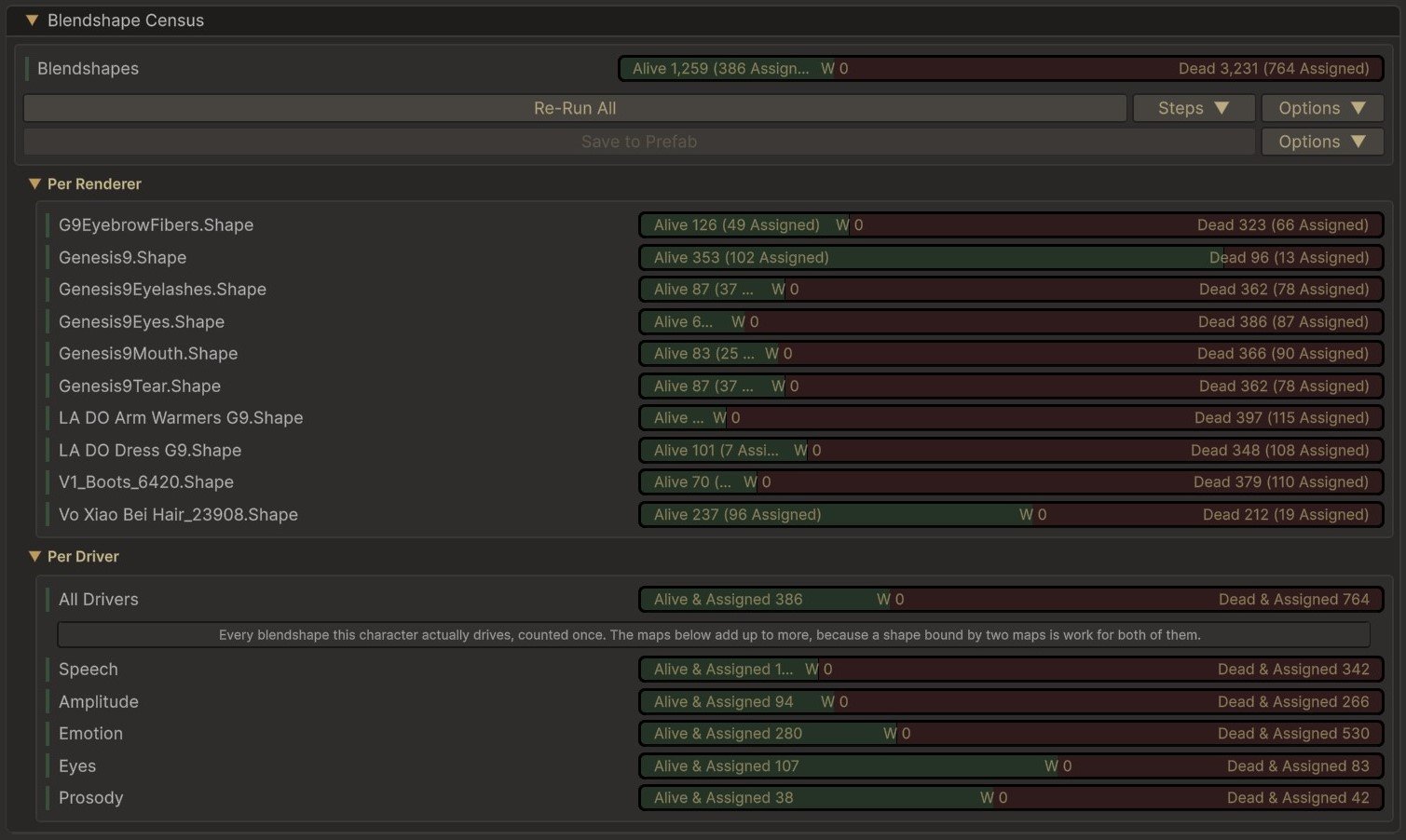
The bars read two ways. Alive blendshapes move geometry. Dead ones move nothing. A third band appears only when a tolerance is set with Set Filter Thresholds (Experimental), under the census's Options, and the window it opens explains it.
The census answers that once, and it measures two things, because they are different questions.
- Aliveness is about the mesh: whether a blendshape moves any geometry at all. That is a fact about the model itself, so every renderer using the same mesh shares one answer, and a blendshape found dead is left out of driving on all of them.
- Coverage is about the renderer: which of the character's renderers carry live blendshapes, and how many. It is there for you to read, to see where a character's cost is going, and it changes nothing about how the face is driven.
None of it costs anything while the character plays. The census is read once, and the blendshapes it ruled out are simply never driven.
It is worth re-running after you change the rig, but a stale census cannot break a character, because every way it could go wrong fails towards driving the blendshape.
- An unmeasured blendshape is driven. Unknown is treated as alive everywhere, so anything the census has no answer for behaves as though the census had never run.
- A changed mesh reads as unknown, not as dead. A mesh re-imported with different blendshapes is treated as unmeasured, and driven until you run the census again.
- A rescan starts fresh, so an old reading never mixes with a new one.
- Reassigning the character root discards the census, since it now describes a different rig.
So the cost of a stale census is lost optimisation, not a broken face. What it found is read further down, per renderer, under Renderer Groups.
Renderer Groups
Which meshes each driver writes to.
The groups themselves are defined on the character's rig map, along with which renderers belong to each. That is where a face is divided up: head, eyes, teeth, tongue, and whatever else a particular character carries.
The second half happens on each driver's own inspector. Every driver carries a Renderer Groups section listing the map's groups, and a Driven By toggle per group, so you set the character's meshes up once on the map and then decide, driver by driver, which of them each one moves. It is a filter over an arrangement that already exists, not another place to arrange things.
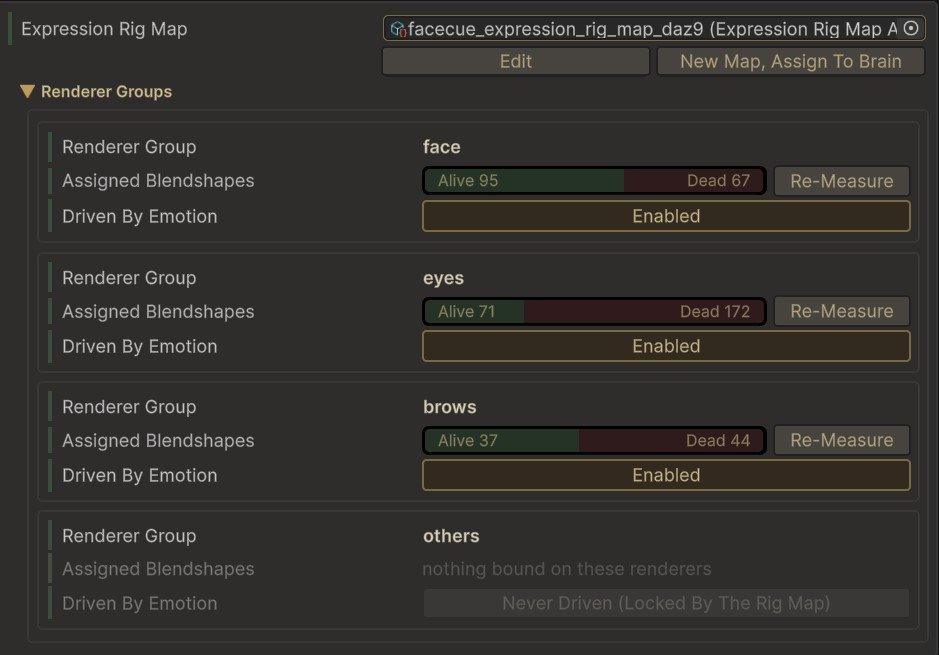
Each group also shows its own slice of the census, alive against dead for the blendshapes assigned on those meshes, with a Re-Measure for just that group. A group with no matching renderers on this character says so in place.
That is more useful than it sounds. It is how you keep the speech driver off a mesh it should not touch while emotion still uses it, without either of them needing a rig map of its own.
A Mesh You Never Assigned Is Still Driven
Every OneClick map carries a catch-all group, usually called others, that takes every renderer no other group claims, and it starts enabled on every driver. A mesh you never put in a group still moves through it. Switch the catch-all off here to keep this driver off the leftovers, or see The Catch-All Group for the other ways.
Disabled Is Final
A group switched to Disabled here is off for everything this driver writes, including binds the map pins to that group. A pin narrows a bind to fewer groups. It never reaches a group this driver has switched off.
A group the map holds at Always Driven or Never Driven follows the map instead, and its toggle here reads Locked By The Rig Map. Pins themselves are covered under The Renderer Pin.
On the Speech driver, the section lists the groups of the map the chosen Speech Mode resolves, so in Live Amplitude it shows the amplitude map's groups. Both modes share one selection. As long as the two maps carry the same groups, as OneClick's maps do, a group switched off in one mode stays off in the other.
Reading the Census Per Renderer
The census results are inspectable here, renderer by renderer, so you can see what was found on each mesh instead of taking the summary on trust.
The section also says when it has nothing to tell you. It reports a character that has never been scanned, and one whose renderers have changed since the last scan, so a census that no longer matches the character says so rather than looking current.