The Families
The rigs the wizard recognises, what each one needs to be exported with, and what the wizard sets up on it. A family is a description of a naming scheme, read from the character's blendshapes and bones, so a character from any of these tools that was exported the usual way is recognised on the Detect step without you telling the wizard anything.
What a Rig Needs: Blendshapes, Not Bones
FaceCue moves the mouth with blendshapes and nothing else. Every viseme, every emotion and every brow is a blendshape on the mesh, and a jaw that only opens through a bone does not open at all. Bones are for the gaze first, the eyes and the head and the chain of neck and body that follows a look, and for breath second, where the chest and shoulders move on bones by default with a swell blendshape as an option beside them. So what the wizard needs from an export is the face's blendshapes on the mesh and the skeleton kept with it.
Almost every family here has at least one export route that carries all of that, so a character from these tools is compatible with FaceCue as it comes, with no plugin or converter in between. Where the route needs a setting turned on, the sections below say which. The one exception is MetaHuman, whose expressions are not stored as blendshapes at all.
Bone Lip Sync Support
FaceCue does not drive a jaw bone for speech today. A rig whose mouth is bone-driven, and whose export cannot bake that into blendshapes, has no lip sync yet, however good the rest of its face is. Bone-driven lip sync is on the roadmap.
The export is the part that goes wrong. Most of these tools ship a character with its facial expressions driven by bones, or with its morphs folded into the mesh, unless an export setting says otherwise. A character exported that way arrives in Unity with a face that has nothing for FaceCue to move, and the wizard reports it as unrecognised or as Unsupported on every channel.
The Families
| Group | Family | Speech recipes | Eye look |
|---|---|---|---|
| Character Creator | CC3 - Traditional | Composed, Direct (1:1), Direct (8+7) | Eye Bones or Gaze Blendshapes |
| Character Creator | CC4 - Standard | Composed, Direct (1:1), Direct (8+7) | Eye Bones or Gaze Blendshapes |
| Character Creator | CC4 - Extended | Composed, Direct (1:1), Direct (8+7) | Eye Bones or Gaze Blendshapes |
| Character Creator | CC5 - HD | Composed, Direct (1:1), Direct (8+7) | Eye Bones or Gaze Blendshapes |
| Daz | Genesis 3 (eCTRL) | Composed, Direct | Eye Bones |
| Daz | Genesis 8 (eCTRL) | Composed, Direct | Eye Bones |
| Daz | Genesis 8.1 (FACS) | Composed, Direct | Eye Bones |
| Daz | Genesis 9 (FACS) | Composed, Direct | Eye Bones |
| MetaHuman | ARKit-52 | Composed | Eye Bones or Gaze Blendshapes |
| MetaHuman | DNA-263 | Composed | Eye Bones or Gaze Blendshapes |
| Ready Player Me | Ready Player Me | Composed, Direct | Eye Bones or Gaze Blendshapes |
| Microsoft Rocketbox | Microsoft Rocketbox | Composed, Direct | Eye Bones or Gaze Blendshapes |
| Synty Sidekicks | Synty Sidekicks | Composed | Eye Bones |
| VRoid | VRoid / VRM | Direct | Eye Bones |
| Generic | ARKit | Composed | Eye Bones or Gaze Blendshapes |
| Blank | Blank | none | none |
What the two speech recipes are, and why a family can carry two Direct sets, is on The Wizard.
Character Creator
One family with four profiles, one per facial profile Character Creator can put on a character: Traditional is the CC3 and ExpressionPlus set, Standard and Extended are the two CC4 profiles, and HD is the CC5 HD facial profile. The wizard tells them apart by the blendshapes each profile ships, so you never pick one by hand. The version of Character Creator you exported from does not matter, the profile does.
Exporting It
A Character Creator character's jaw, and many of its expressions, are driven by bones inside Character Creator. A plain export carries those bones and not the blendshapes, and in Unity nothing opens the mouth. Two settings fix that.
- File, Export, FBX, and choose the clothed character.
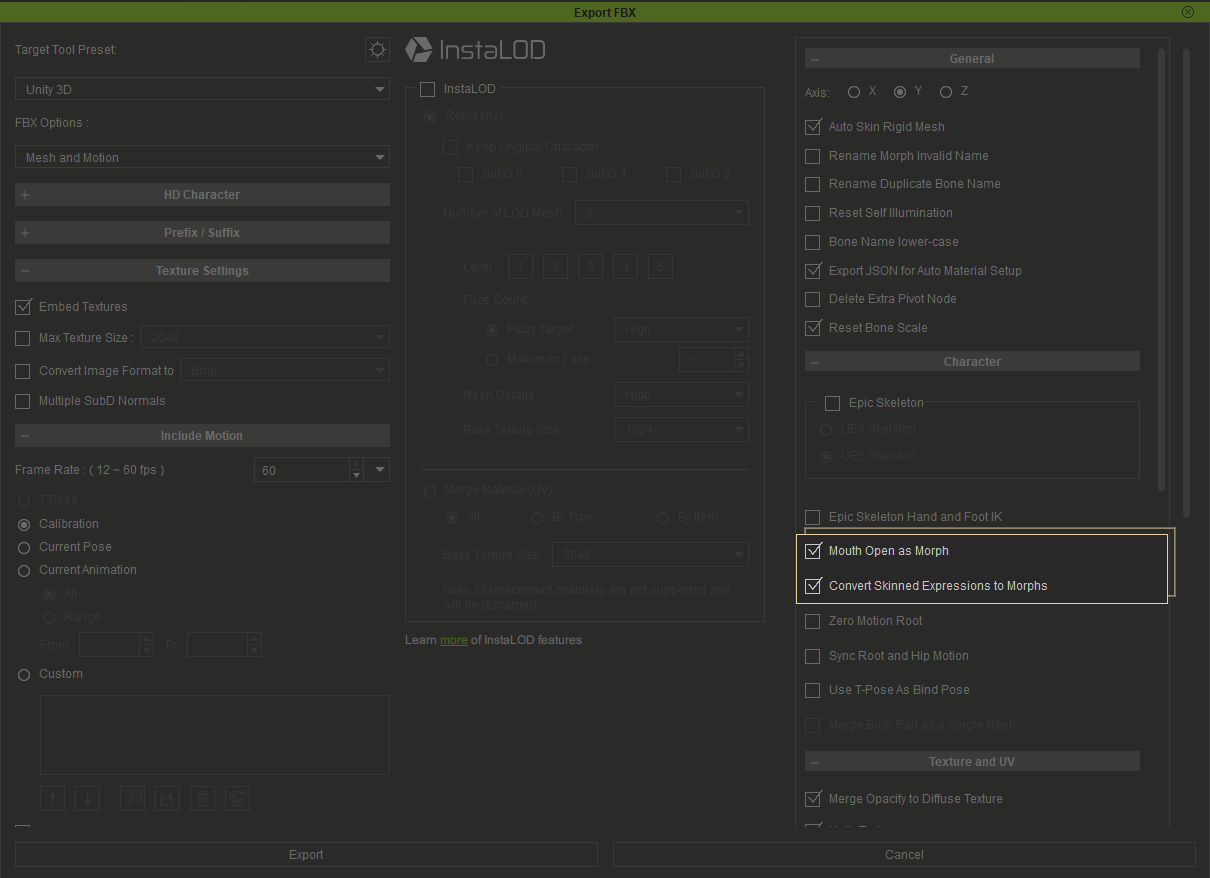
- Set Target Tool Preset to Unity 3D and FBX Options to Mesh, or Mesh and Motion. A Motion export carries no mesh, so it has no blendshapes at all.
- Press the gear button beside Target Tool Preset. It opens the advanced settings as an extra column in the same window, which is easy to miss.
- Turn on Mouth Open as Morph. This bakes the jaw into a blendshape. Without it the jaw does not move with any blendshape, whatever else is set.
- Turn on Convert Skinned Expressions to Morphs. This bakes the other bone-driven expressions. It covers everything except the jaw, so the two settings are both needed.
- Export. Character Creator writes a JSON file beside the FBX. Keep it with the model.
Both Settings, Every Export
The two settings cover different things and neither stands in for the other. A character exported with only Convert Skinned Expressions to Morphs has a face that emotes and a jaw that never opens. Run the Blendshape Census after setup as well, since a Character Creator export carries the whole blendshape set on every renderer.
The Two Direct Sets
Character Creator can carry its visemes as one set of named phoneme blendshapes or as a smaller set of viseme primitives. Which one it carries is set on the character in Character Creator, whatever its facial profile, and not at export. The wizard's Real Speech bars show which set the character carries: Direct (1:1) reads the named set, and Direct (8+7) reads the primitives. Composed reads from the profile's expression blendshapes and works with either.
Pupils
The Extended and HD profiles carry pupil blendshapes, and the wizard drives them through the eyes map. Standard and Traditional carry none, and their pupils are a material. For those two the wizard offers Pupil Material Script under Add Sources, which lets pupil dilation reach the material instead.
Daz Genesis
Four families across two naming schemes. Genesis 9 and Genesis 8.1 speak FACS, Genesis 8 and Genesis 3 speak the older eCTRL controls. The wizard reads which one the character carries.
There are two ways out of Daz Studio, and both can carry everything the wizard needs. We recommend the first, for one reason set out under it.
Daz to Unity Bridge
The bridge is Daz's own path into a Unity project, installed through Daz Install Manager with a matching package on the Unity side. Its morph picker is where the face comes from.
- Select the figure and choose File, Send To, Daz to Unity.
- Turn on Enable Morphs and open Choose Morphs.
- In the Morph Groups tree, open Pose Controls and select Head. Every face morph, the visemes included, lists under it.
- Select them all and press Add For Export.
- Turn on Allow Morph Double-Dipping, at the bottom left.
- Accept, and export.
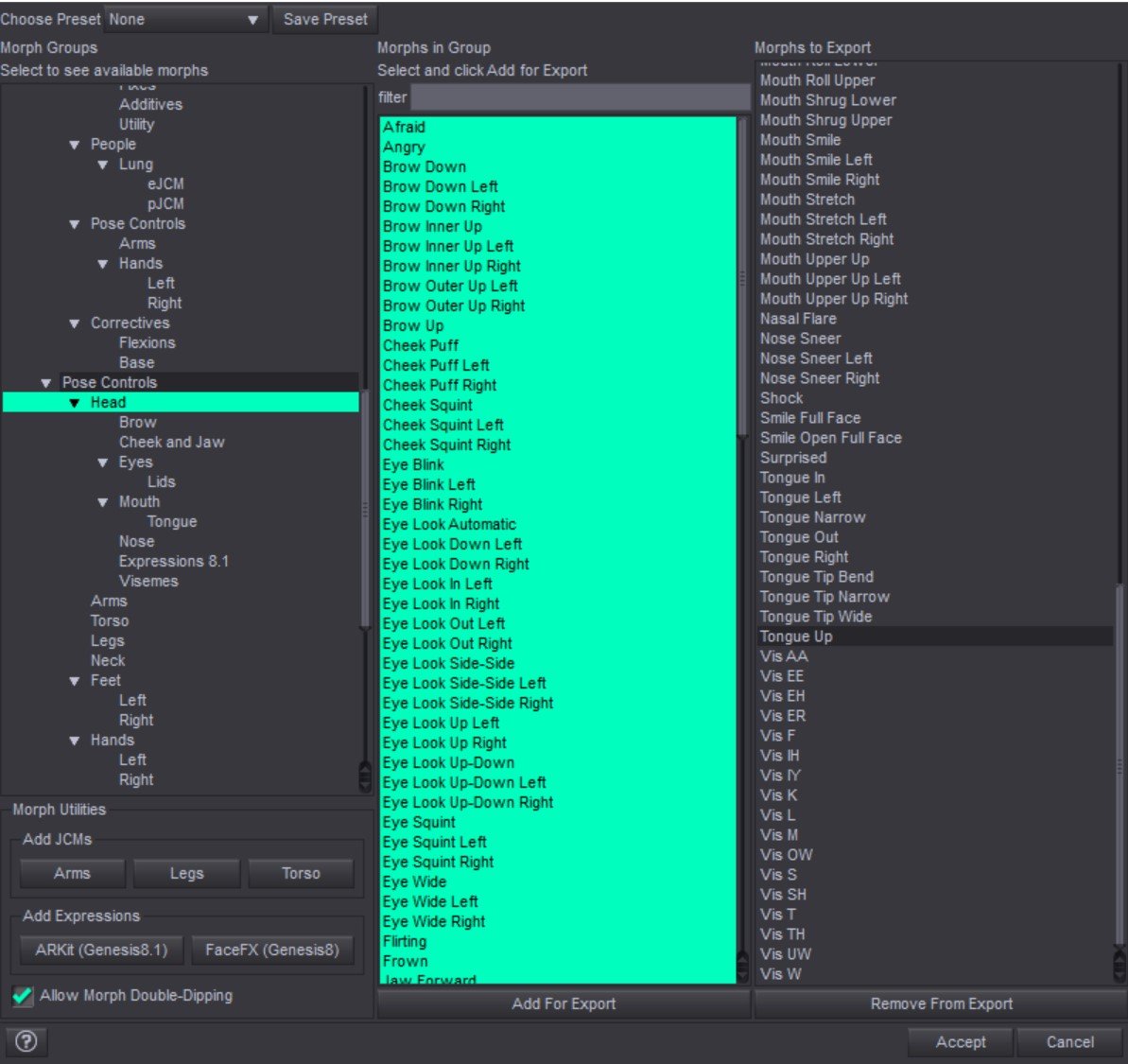
The double-dipping setting is what decides whether Direct speech is available. The named visemes are built on the same underlying morphs as the regular face blendshapes, and Daz will not normally export a morph twice, so without the setting the visemes are left out and the wizard offers Composed alone. With it, both sets come across and the wizard offers both recipes.
Double-Dipping Is Safe for the Head Morphs Only
Exporting the head morphs with double-dipping allowed is safe. Adding more than those to the export with the setting on can cause problems, up to an export that fails. So either keep the export to the head morphs, or leave the named visemes out of it, turn the setting off, and use Composed, which reads the regular blendshapes alone.
We recommend the bridge because, as far as we could find, the plain FBX export below has no equivalent of the double-dipping setting, so it cannot carry the named visemes alongside the regular blendshapes. That is our reading of it and not a ruling on Daz: we do not claim to be Daz experts, and either route sets a character up.
Plain FBX Export
Daz folds every morph into the mesh by default. The FBX export has an Include Morphs checkbox, and turning it on is not enough: a separate table of Morph Export Rules decides what happens to each morph, and its built-in rule sends everything to Bake, which flattens the morph into the mesh and leaves no blendshape behind. One added rule is the fix.
- Load the figure with a neutral face and select it.
- File, Export, and choose Autodesk FBX. The export options open.
- Under Modifiers, turn on Include Morphs and press Export Rules beside it.
- In the FBX Morph Export Rules table, press Add and set the new rule's Match to the name for your generation, below, and its Action to Export. Leave the Final rule, Anything to Bake, where it is as the catch-all.
- Keep the skeleton in the export. The jaw, the eyes and the eyelids are bones the wizard wires.
| Generation | Rule to add |
|---|---|
| Genesis 9 | facs to Export |
| Genesis 8.1 | facs to Export |
| Genesis 8 | eCTRL to Export |
| Genesis 3 | eCTRL, CTRLVS and VSM to Export |
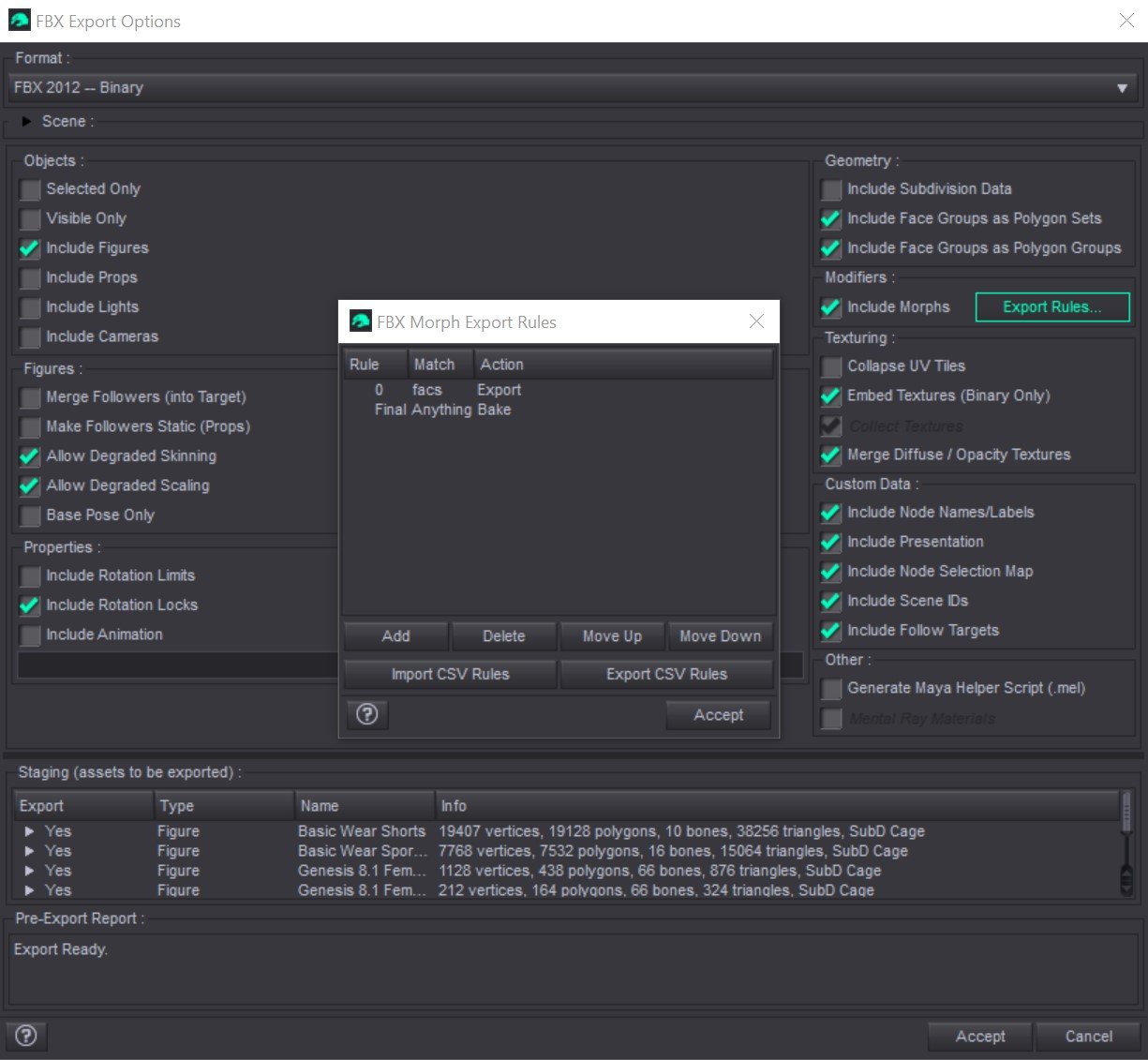
The bridge reaches the same table too. Turn on its Advanced Settings and Show FBX Dialog, and the FBX dialog appears during the send, with the rules where the plain export has them.
After Either Route
A Genesis figure exports its face across several meshes, on Genesis 9 the body, the mouth with its teeth and tongue, the eyes, the eyelashes and more, and the wizard writes to every mesh that carries the face blendshapes, so the teeth follow the jaw. Run the Blendshape Census after setup: the same figure carries hundreds of blendshapes on renderers that never move them.
MetaHuman
Two families on one rig. A MetaHuman's expressions live in its facial rig rather than as stored morphs, so bringing one into Unity means baking expressions to blendshapes on the face mesh, and the wizard recognises the two sets that bake produces. ARKit-52 is the standard set under its plain names. DNA-263 is the full control set, and it drives finer speech and expression than the ARKit set can: lips that meet the teeth, a true seal when the mouth closes, a tongue that reaches forward, and separate corners for a smile against a frown.
Both need the MetaHuman facial skeleton kept with the mesh. Detection reads that skeleton, and eye gaze rides its eye joints. The wizard recognises which of the two it has.
FBX Exporter for MetaHumans
A MetaHuman has no direct path into Unity in any case, with or without FaceCue, since Unreal writes the character's rig data rather than a mesh with blendshapes. We built a tool for exactly that: the FBX Exporter for MetaHumans, an Unreal plugin that assembles the character and bakes its expressions to blendshapes, as the standard ARKit set or the full control set, in the form the wizard reads. One of the demo characters in the package was exported with an earlier version of it.
If you own FaceCue, the exporter is free while it is in beta: mail your Unity Asset Store invoice number to support@facecue.net and we will send you a code. What comes with FaceCue once the exporter reaches 1.0.0 may change, and its licence says what the code covers.
Ready Player Me
Avatars whose face carries two full blendshape sets: the Oculus viseme set, which Direct speech reads, and the ARKit set, which Composed speech and everything else read. An avatar exported with both sets gets every channel. One exported with the visemes alone still speaks, and the channels that need the ARKit blendshapes skip cleanly. The blendshapes are replicated across the head, the teeth and the two eye meshes, and the wizard writes to all of them so nothing detaches from the mouth.
Microsoft Rocketbox
The free avatar library published under the MIT licence. Every avatar carries the same face, so one family covers the whole library, and it is the cleanest Direct source of any family: a full viseme set that deforms properly, a jaw that is a blendshape rather than a bone, and the ARKit units beside them for everything else. Use each avatar's facial FBX, the one that carries the face blendshapes.
Synty Sidekicks
Stylised modular characters that assemble into one combined mesh whose blendshapes carry a prefix, which the wizard handles for you. The set is ARKit vocabulary with no viseme blendshapes of its own, so speech is Composed from the expression blendshapes, with sided mouth and brow blendshapes and real tongue blendshapes to draw on.
VRoid / VRM
Characters from VRoid Studio, exported as VRM and imported with UniVRM. Both VRM 0.x and 1.0 carry the same face blendshapes, and the wizard drives those blendshapes directly. It is the coarsest family by design: five vowel blendshapes carry speech, so Direct is the one recipe, and with no dedicated shapes for a sealed mouth or the tongue, those moments borrow from the shapes around them. One face mesh carries everything, and the eyes and head are on bones.
Generic ARKit
Any rig that ships the standard ARKit blendshapes under their plain names: a phone capture rig, an avatar tool's export, a character built to that spec. Speech composes from the action units, since ARKit has no viseme blendshapes, and gaze can ride the look-direction blendshapes, so no eye bones are needed. The skeleton varies from rig to rig, so the gaze chain is a best guess and may want the Eyes driver's own Auto-Setup afterwards. A maker's family claims a rig first when it recognises one, and this family catches the rest.
Blank
Not a rig. Blank installs the components and the brain and binds no blendshapes at all, leaving every map empty and ready to fill by hand in the Face Rig Designer. It is the start for a rig none of the families describe, and the wizard offers it when nothing matched.
A Rig That Is Not Here
A rig from elsewhere starts from Blank, or from the closest family if its names line up, and is filled in the Face Rig Designer. Which rigs come next is a matter of what people ask for: the roadmap says how.