OneClick Wizard
The tool that sets a character up for FaceCue in one pass. It reads the character's meshes and bones, works out which rig family it was built on, builds a map for every part of the face, adds the components, and wires the head and eyes. Your First Character walks it once on a character that behaves, and the first walkthrough video does the same on screen. This page is the reference: each step, every option on it, and what happens when you run it a second time.
It opens from the FaceCue Hub as OneClick Wizard, from the menu under FaceCue, and from the Face Rig Designer toolbar's Load OneClick menu. Nothing is written to your project until the Apply step, and everything it writes can be undone from the Verify step, so it is safe to walk through just to see what it finds.
The Five Steps
The steps run across the top of the window: Slot, Detect, Select, Apply and Verify. Each unlocks the next. A character unlocks Detect, a chosen family unlocks Select and Apply together, and a finished apply unlocks Verify. You can step back at any point, and the choices you made stay where you left them.
Most characters need one glance at Detect and nothing else. As long as one option matches in each group there, the defaults on the later steps are the right ones.
Slot
Where you say which character, and what to call it.
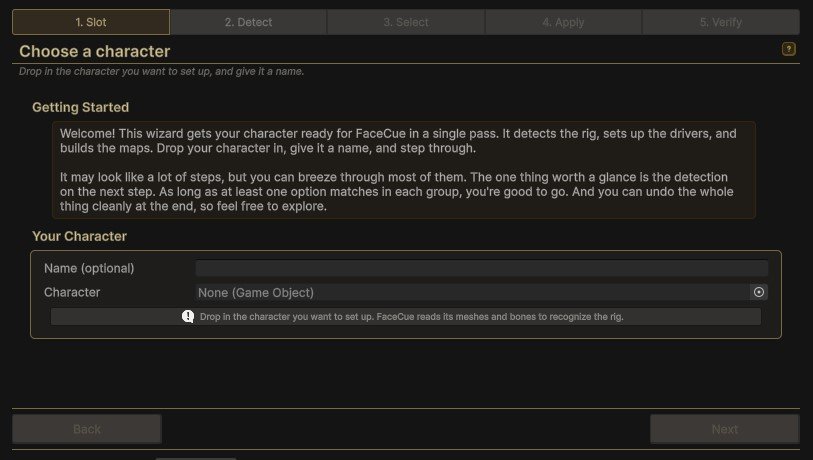
Character
Character takes a scene object, a prefab, or a model asset from the Project window. You can also drop it anywhere on the window. The wizard reads every skinned mesh under it and every bone, and shows the count of renderers, blendshapes and bones it found.
A character with no facial blendshapes cannot be recognised, and the wizard says so. It can still be set up from Blank and authored by hand in the Face Rig Designer, but there is nothing for detection to work with.
Name
Name (optional) names the assets FaceCue creates for this character. Left empty, the character's own name is used. On the first apply it becomes the name FaceCue knows the character by, and the generated files are named after it. After that it is fixed: applying again writes to the same files whatever the character is called now, so a rename needs an undo and a fresh apply.
Preexisting Brain
If the character already carries a brain somewhere below its root, a read-only Preexisting Brain row shows which object that is. The wizard installs its components beside that brain rather than on the object you dropped, because the runtime only finds a driver as the brain's neighbour. The meshes and bones still come from the object you dropped.
Detect
Where the wizard tells you what it recognised. Everything here is a readout, and the choices it leads to are made on the next step.
Two different things are on show, and they are worth telling apart. The family bars say how sure the wizard is about the rig. Every bar below them says how much of a recipe this particular rig can carry, which is coverage rather than confidence. A regular export from a supported family usually comes out fully covered, because the recipes are authored against each family's standard blendshape set. A trimmed or custom export comes out partial, which means some recipes have fewer blendshapes to work with rather than anything being broken.
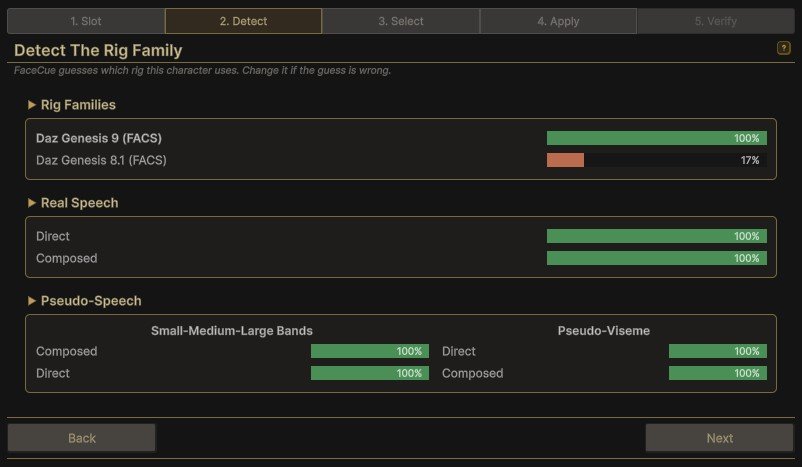
Rig Families
A family is the kind of rig the character is built on: Character Creator, Daz, MetaHuman, VRoid and so on. Choosing one tells FaceCue which blendshapes the character has and what they mean, so it can fill the maps correctly. The full set, and how each is exported, is on The Families.
Detection reads the character's blendshape and bone names and recognises which families they come from, with a bar for how closely the character matches each. The top match is chosen for you. Two things can change that:
- Two families score close. The wizard warns that the character is a close match for both and asks you to pick on the next step. This happens on rigs that share a naming scheme.
- Nothing matched. The wizard offers Blank, or the family picker if you know what the rig is and its names have been altered.
Real Speech
The bars under Real Speech show, for each mouth-shape recipe the family offers, how much of it the character's blendshapes cover. Each family carries hand-tuned recipes, and this is where you see how they are built. It is the one choice worth understanding.
- Direct uses the rig's own viseme blendshapes, honouring the way the family author shipped them. It is usually not one to one, since most families do not match FaceCue's viseme set exactly, so a mouth position is often a blend of the rig's own visemes.
- Composed blends several more fundamental blendshapes into a fuller mouth: the jaw, the lips and the tongue, built up from the rig's smaller blendshapes rather than its ready-made visemes.
Composed is the suggested pick, since it reads better on most rigs. There are reasons to consider Direct. A family whose viseme blendshapes were sculpted with care looks the way its author intended under Direct, where Composed is only as good as the rig's smaller blendshapes. Direct also writes fewer blendshapes per mouth position, which makes it the cheaper of the two on a crowd, in the terms Performance sets out.
Almost every family has one Direct set. A family can carry two, where the family author provides a second set of viseme blendshapes to build on, as Character Creator does. A family that offers one recipe shows one bar, one that offers several shows one bar each, and the pick is made under Select.
Pseudo-Speech
Pseudo-speech drives the mouth from how loud the audio is rather than from the words in it. It is the safety net: when a baked clip is missing at runtime, the face falls back to it rather than going still. The two columns are the two ways of doing that.
- Small-Medium-Large Bands opens the mouth wider as the audio gets louder. It works on almost any rig, since it needs only a jaw or an open-mouth blendshape.
- Pseudo-Viseme uses the same loudness to pick one of a handful of mouth shapes, so it looks a little more articulated. Its bars mirror the Real Speech recipes, since it borrows their blendshapes.
Neither matches real speech, and they are not meant to. What they are for is on Speech.
Eye Look
Shown only for families that can drive gaze two ways. Eye Bones turns the eyeballs, the smooth way most rigs move their eyes. Gaze Blendshapes blends look-direction blendshapes instead, for rigs that carry those but have no eye bones to turn, which includes many ARKit capture rigs. A line above the bars says which one Auto will use: it follows whether the character has eye bones. What the two modes mean on the character, and the one extra row a rig on blendshapes gets, is on Bones & Blendshapes.
Select
Where the choices are made, and where you see what will resolve before anything is written.
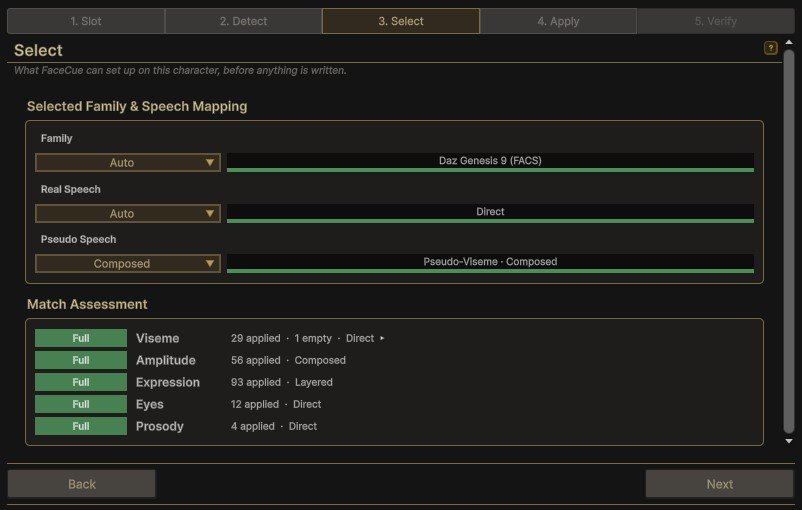
Selected Family & Speech Mapping
Four pickers, each defaulting to Auto, each with a read-only box beside it showing what Auto resolved to and how much of the rig it covers.
Family overrides the detected rig. The menu lists Auto, then Blank and Generic ARKit as the two fallbacks, then the vendor families grouped by maker, each with its match percentage. Blank installs the components and the brain and binds no blendshapes at all, leaving every map ready to fill by hand.
Real Speech picks the viseme recipe, Composed or Direct, or the second Direct set on a family that has one. On Auto it takes Composed when the rig carries nearly all of its blendshapes, and Direct when it does not.
Pseudo Speech picks the loudness recipe, grouped by the two columns Detect showed, and is separate from Real Speech. On Auto it takes Pseudo-Viseme, Composed first, when the rig carries nearly all of its blendshapes, and Small-Medium-Large Bands when it does not.
Eye Look appears only when the family offers both eye modes. Auto follows the rig's eye bones.
Only the pickers the family has a choice for are shown. A family with one speech recipe and one eye mode shows the Family picker alone.
Match Assessment
One row per part of the face, with a status pill and the counts behind it: how many blendshapes were placed, how many skipped, and how many recipes are empty.
| Status | Meaning |
|---|---|
| Full | Every blendshape the recipe asked for was found on the rig. |
| Partial | Some were found and some were not. The map is written with what matched. |
| Unsupported | Nothing matched. The rig lacks what this part needs, and no map is written for it. |
Clicking a row that skipped anything opens the list: each blendshape the recipe wanted and why it was not placed. That is the list to read when a character comes out Partial and you want to know whether it matters. A row can also name recipes that are empty, fill in later: targets the library knows about that this family does not author, created blank in the map so the full set is there to fill in the Face Rig Designer.
Partial Is Usually Fine
A rig that lacks a tongue blendshape, or one of the finer lip corrections, comes out Partial on speech and still talks well. Look at what was skipped rather than at the pill. Unsupported on a part you need is the one to act on, and it usually means the wrong family was picked.
Apply
Where you decide what the wizard writes and installs, and then run it.
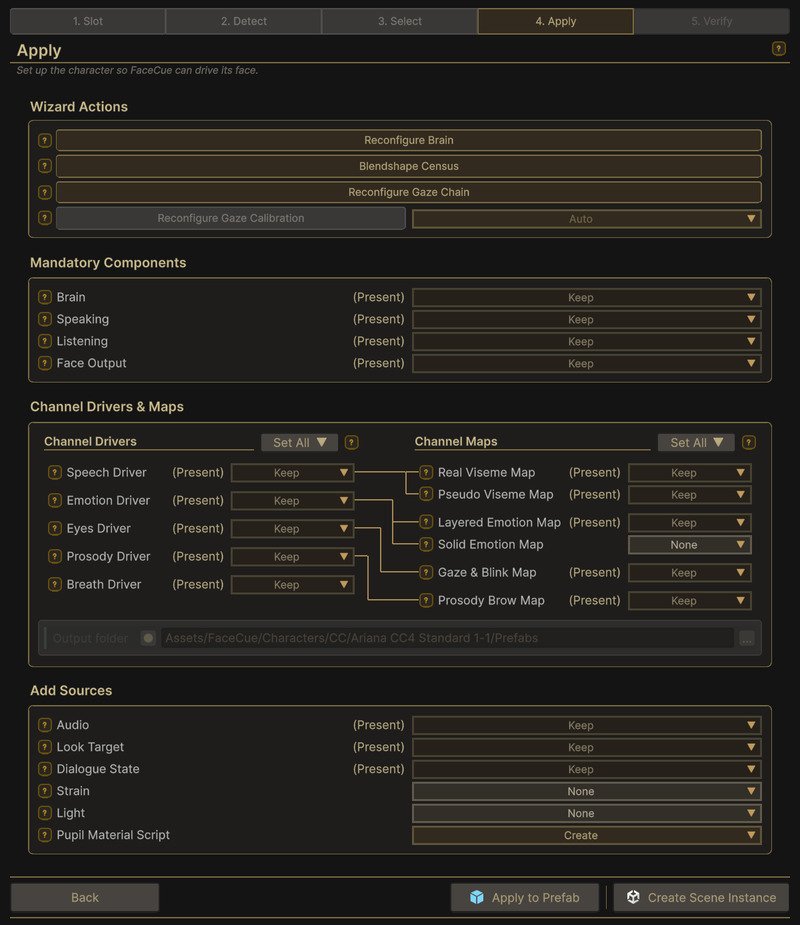
A Map of the Step
 1
2
3
4
5
6
7
8
9
10
11
1
2
3
4
5
6
7
8
9
10
11
- Wizard Actions. The switches for wiring the brain, running the blendshape census, and wiring the eyes.
- Mandatory Components. The four every driver needs. They come with the first driver, so for a character without them the picker only shows whether they are coming.
- Channel Drivers. One picker per driver, and Set All on the title. Prosody and Breath need Speech.
- Channel Maps. One picker per map, deciding what Apply does with it, and Set All on the title.
- The lines show which driver owns which maps.
- Solid Emotion Map is the one map left out unless you ask for it.
- Output folder. Where new maps are written. Beside the prefab, here.
- Add Sources. The optional children, each with a picker of the components that can fill the role.
- (Present) marks what the character already has. A picker on Keep is dimmed and one on None is grey, so the rows Apply will change stand out.
- Every row has its own help, on the left. The question mark is the in-editor documentation for that row.
- Apply to Prefab and Create Scene Instance, the two ways to run it on a prefab. A scene object gets Apply in Scene instead.
Wizard Actions
The switches for the work that is neither a component nor a map. All are on by default except the calibration row, which only appears when it is needed.
- Configure Brain sets the brain's character root and finds its head bone. It reads Reconfigure Brain when a brain is already there.
- Blendshape Census measures which of the character's blendshapes actually move geometry and records it on the brain. It creates nothing and changes no setting. What it is for is on Performance.
- Configure Gaze Chain finds the eye bones and sets how far the neck and body follow a look, using the family's knowledge of the skeleton. This is the same setup the Eyes driver's own Auto-Setup performs, described on Gaze Setup.
- Configure Gaze Calibration appears only when no Gaze & Blink map is being written. When one is, the calibration comes with it. Turn this on to give a character that already has its map the family's eye settings without regenerating the map. Where the family has more than one way to drive the eyes, the picker beside it chooses which.
Mandatory Components
Four components every driver needs: Brain is the FaceCue Brain, Speaking and Listening keep track of what the character is saying and hearing, and Face Output brings every driver together into the one face the character wears, covered on The Resolver.
They arrive with the first driver set to Create and cannot be left out on their own, so for a character that lacks them the picker is a readout: Create when a driver is coming, None when none is. One the character already has reads (Present) and offers Keep, or Full Reset, which puts it back to its defaults.
Channel Drivers
One row per driver: Speech Driver, Emotion Driver, Eyes Driver, Prosody Driver and Breath Driver, each with a picker that decides what Apply does with it.
A driver the character does not have yet offers two choices, and starts on Create:
- None leaves it out.
- Create adds it, along with the mandatory components.
Prosody and Breath need the Speech driver, so they stay on None until Speech is on Create or already on the character.
A driver the character already carries reads (Present), offers Keep or Full Reset, and starts on Keep. Keep leaves it as it is and binds the new maps onto it. Full Reset puts it back to its defaults, including anything you assigned to it, and sets it up again from scratch.
Set All, on the column's title, gives every driver the same choice at once. None and Create reach the drivers the character does not have yet, Keep and Full Reset the ones it has. The choices are made for this apply only and are not remembered.
Channel Maps
One row per map, with a picker beside it that decides what Apply does with that map, and lines in the gutter show which driver owns which map. Real Viseme Map and the loudness map, labelled SML Map or Pseudo Viseme Map after the Pseudo Speech pick, belong to Speech. Layered Emotion Map belongs to Emotion, Gaze & Blink Map to Eyes, Prosody Brow Map to Prosody. Breath has no map.
A map the character does not have yet offers two choices, and starts on Create:
- None leaves it out.
- Create writes it and assigns it to its driver.
A map the character already has reads (Present), and hovering the row names the file. It offers three choices, and starts on Keep, so running the wizard again never replaces a map you have tuned unless you ask it to:
- Keep leaves it as it is.
- Create writes a new map and assigns it instead. The one it replaces stays in the project, unassigned, and the new file takes a number when the name is already taken.
- Reapply OneClick rewrites the assigned map in place from this family. Its driver keeps pointing at the same asset, every character that uses the map changes with it, and anything tuned in it is lost.
Set All, on the column's title, gives every map the character already has the same choice at once. Each row can still be changed afterwards. The picks are made for this apply only and are not remembered.
Solid Emotion Map is the one map that starts on None when the character does not have it. When it is written, it is a solid version of this family's emotion expressions, assigned beside the layered map, so the character can switch between the two emotion sources later. The character keeps driving from Layered either way. The difference between the two is on Emotion.
A map with no driver is written but left unassigned. A driver whose map is left out keeps whatever it had.
Output Folder
At the bottom of the same section, since new maps are the only thing written to it. Where the map assets go. It greys out when no map is on Create, since a kept map is not written and a reapplied one is rewritten where it already is. The default is the folder the character's prefab or model lives in, so the maps sit beside it, or a FaceCue folder under Assets for a character that exists only in the scene. A character that has been set up before defaults to wherever its maps already are. The filenames carry the character's name, the family, and a .oneclick marker, which is how the wizard's undo finds its own files.
Add Sources
The optional children a character can carry, each with a picker. Audio is the AudioSource FaceCue reads clip playback from, and the one most characters want. Look Target, Dialogue State, Strain and Light are the World Inputs, each a small component that tells the character something about its surroundings.
For a source the character does not have yet, the picker offers None, which leaves it out, or Create: followed by a component that can fill the role. That list is not fixed. It is every component in your project that can fill the role, whatever it is called. The shipped examples are there because they fill it, and a source of your own, written to connect FaceCue to your game's own code, appears in the same list the moment it compiles. Sources & Overrides shows the shape to follow. The pick is remembered between characters, so a project that always uses its own look source sets it once.
A source the character already carries reads (Present) and offers Keep, Assign when there is more than one to choose from, or Create to add another.
Character Creator characters get one more row, Character Creator Bridge, when they need it: a Standard or Traditional character, whose pupils are a material rather than a blendshape, or one carrying Reallusion's Bone Driver. The bridge lets pupil dilation reach the material, and keeps the Bone Driver in step with FaceCue. See Character Creator Characters.
Running It
The footer offers one or two buttons, depending on what you dropped in.
- Apply in Scene sets up a scene object where it is.
- Create Scene Instance places an instance of a prefab or model in the open scene and sets that up. The asset itself is untouched.
- Apply to Prefab appears for a prefab and edits the asset itself, so every instance of it gets the setup.
The whole apply is one undo step in the Editor, except for the prefab path, which saves into the asset.
Verify
What was done, where it went, and the way back.
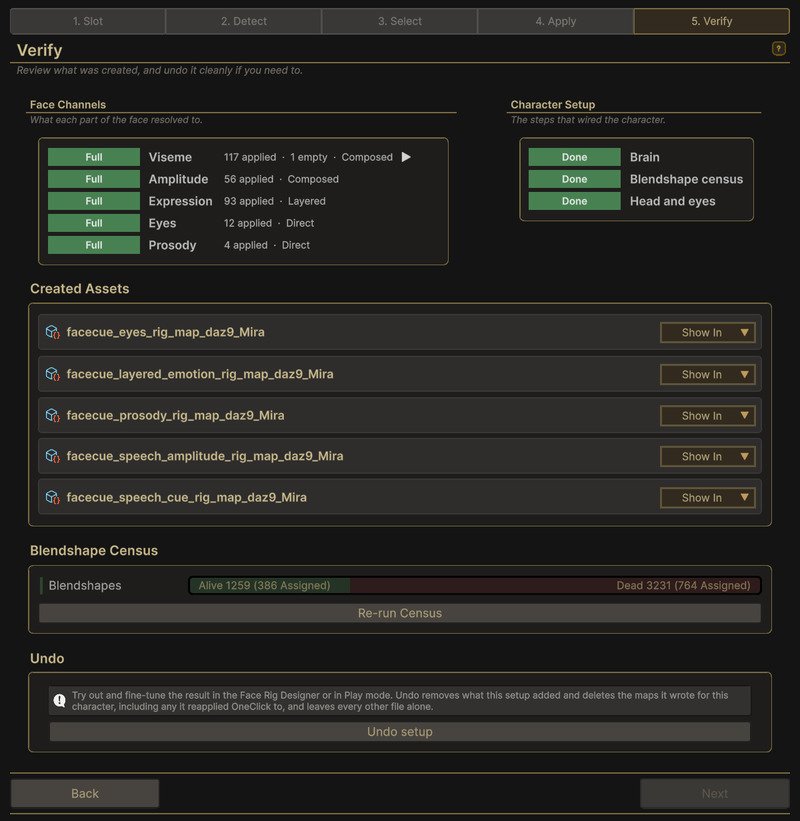
The step opens on two columns. Face Channels repeats the Match Assessment as it actually applied, one row per part of the face with its pill and counts. A part whose map you kept reads Kept instead, since nothing was matched for it. Character Setup is the rig-wide work: Brain, Blendshape census and Head and eyes, each marked Done or Skipped.
Created Assets
Each map the wizard wrote, in its own box, with a Show In picker: Face Rig Designer opens the map for tuning, Project pings it, Explorer reveals the file. The Face Rig Designer is where every recipe the wizard filled can be inspected and reshaped, and the Face Rig Designer chapter covers it.
Blendshape Census
The census as the brain's own inspector shows it: a bar of the character's blendshapes split into the ones that move geometry, the ones that barely do, and the ones that move nothing, with how many of each a map binds. Re-run Census measures again and changes nothing else. What the census is for is on The Brain.
Undo
Undo setup removes the components the wizard added, deletes the map assets it generated, and removes the scene instance if it created one. It finds its own files by the marker they carry, so a map you authored by hand is never touched, and neither is another character's set. A map you reapplied OneClick to counts as one of its own. After an undo the wizard returns to Apply with the same choices loaded.
Running It Again
The wizard is built to be run more than once on the same character, after a rig change, a family correction or a new version of FaceCue. What it preserves:
- Your maps. A map the character already has starts on Keep. Pick Reapply OneClick to rebuild it in place, so its driver keeps pointing at the same asset, or Create to write a new one beside it.
- The name. The name from the first apply wins over whatever is in the Name field.
- Your brain wiring. A character root you set by hand on the brain is kept. The wizard fills an empty field and does not replace a set one.
- Your driver settings, unless you pick Full Reset for that driver.
- Your sources. A source the character already carries is kept and re-bound.
What a second run does not do is invent a new identity. The same character, renamed, still writes to the files it wrote before.
The Families
Which rigs the wizard recognises, what each needs to be exported with, and what it sets up on them is its own page: The Families. The export settings there are the part worth reading before the first character, since a Character Creator or Daz figure exported without them arrives with nothing for FaceCue to move.