Your First Character
From a model dropped in to a face ready to speak.
Setting up a character with the OneClick Wizard, from dropping the model in to a face that is ready to speak. Deeper than the walkthrough video: what the detection is telling you, and the one choice worth understanding before you accept the defaults.
The Walkthrough
The first walkthrough covers this page's ground: it sets a character up with the wizard, then opens the Face Rig Designer for a first look at what the wizard made.
Watch it on YouTube, or see all three on Media.
The OneClick Wizard
What You Need First
A character with facial blendshapes, in your project. That is the whole requirement, and it is the one thing FaceCue cannot work around yet: the mouth is moved with blendshapes, so a rig whose face is driven only by bones has nothing to drive.
Several character tools need a setting turned on before they will export those blendshapes, and in Character Creator and Daz it is easy to miss. If your character came out of either, read What a Rig Needs before you export it, not after.
Open the Wizard
The FaceCue Hub opens itself the first time the editor loads, and the wizard is a tile on it. opens it directly.
Drop the Character In
Drop the character anywhere on the wizard window, from the Hierarchy or from the Project window. A scene object, a prefab and a model asset all work.
You can give it a name for the files the wizard generates. Everything else on this step is a readout.
What the Detection Is Telling You
The wizard looks the character over and works out which rig family it belongs to. The family bars say how sure it is. The bars below them say how much of each recipe this rig can carry.
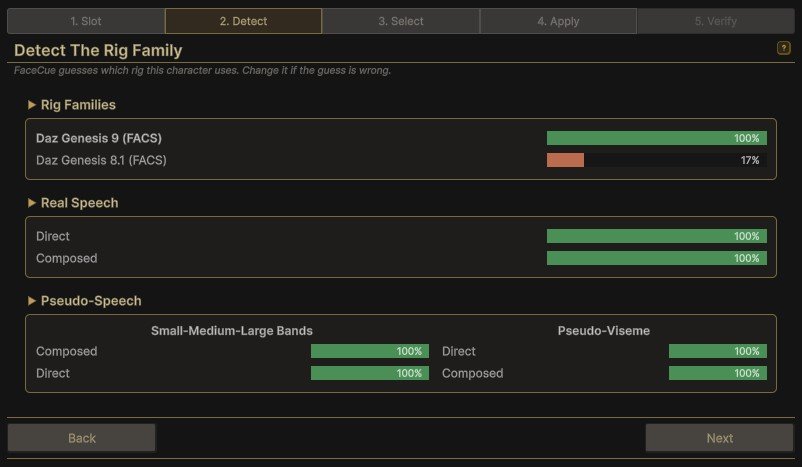
A regular export from a supported family usually comes out fully covered. A trimmed or custom one comes out partial, which means fewer blendshapes for some recipes rather than anything broken. Two things are worth acting on rather than reading past.
- Two families scoring close. The wizard says so and asks you to pick. It happens on rigs that share a naming scheme, and the answer is whichever tool the character actually came from.
- Nothing matching at all. Either the character has no facial blendshapes, or its blendshape names were changed on the way out. Start from Blank and author by hand, or pick the family you know it is if only the names were altered.
Everything else on this step is explained on Detect.
The One Choice Worth Understanding
The family offers one or two ways of building each mouth position, shown as a bar each. This is the choice the defaults do not make for you.
Direct
Uses the rig's own viseme blendshapes, honouring the way the family author shipped them. It is usually not one to one, since most families do not match FaceCue's viseme set exactly, so one mouth position is often a blend of the rig's own visemes.
Composed
Blends several more fundamental blendshapes into a fuller mouth, building each position from the jaw, the lips and the tongue rather than from ready-made visemes.
Which to Pick
We recommend Composed. It reads better on most rigs, and it is what the wizard picks when the family offers both. There are real reasons to consider Direct, and Real Speech sets them out. If the family offers one recipe you will see one bar, and there is nothing to decide.
Walk Through and Accept
The next two steps guide you through the selections, and the defaults are right in most cases.
Select shows what will resolve before anything is written: each part of the face marked Full, Partial or Unsupported. Partial is common and usually fine. Unsupported on a part you were counting on normally means the wrong family is picked.
Apply decides what gets written, and everything is on by default, which is what you want on a first character. Then press the button in the footer: a scene object is set up where it stands, and a prefab or model gets an instance placed in the scene.
What You Have Now
The Verify step lists it: the components on the character, the head and eyes wired to its bones, and a map on disk for each part of the face. The character is in the scene, ready to speak, with an audio source under it for the clip you are about to bake.
If any of it looks wrong, Undo setup removes exactly what the wizard added and deletes exactly the files it wrote. Nothing you made by hand is touched, so running the wizard again after a better export costs nothing.
The Face Rig Designer
The second half of the video opens the other tool you will meet on day one. The wizard fills a map for each part of the face, and the Face Rig Designer is where those maps are opened, read and reshaped on your own rig.
Nothing needs tuning before your first clip. For most characters the defaults are enough to start baking against, and the designer is where you go when a particular shape does not read the way you want it to.
Next
Your First Clip bakes a line so this character can speak it.