Audio Import¶
How a clip's import shapes its line.
How a voice clip is imported decides two things: how the live modes follow it, and when its line can start. Both are set on the clip itself, in its import settings.
What Each Mode Needs¶
Baked¶
Baked Phoneme takes any import. A baked line plays its cues and never reads the clip.
Live¶
Live Viseme and Live Amplitude follow the voice as it plays, reading the clip itself where its import allows.
| Load Type | Compression Format | Live Viseme Support | Live Amplitude Support |
|---|---|---|---|
| Decompress On Load | any | ✓ | ✓ |
| Compressed In Memory | PCM | ✓ | ✓† |
| Compressed In Memory | Vorbis, ADPCM or another compressed format | ✗ | ✓*† |
| Streaming | any | ✗ | ✓*† |
* Follows the character's playback instead of the clip. See Following the Playback.
† Not supported on WebGL, which only reads Decompress On Load clips and can't follow the playback.
Where Live Viseme can't read the clip, the line moves on to Live Amplitude, the next mode in its Fallback Chain. A browser build has no Live Viseme.
Best Practice¶
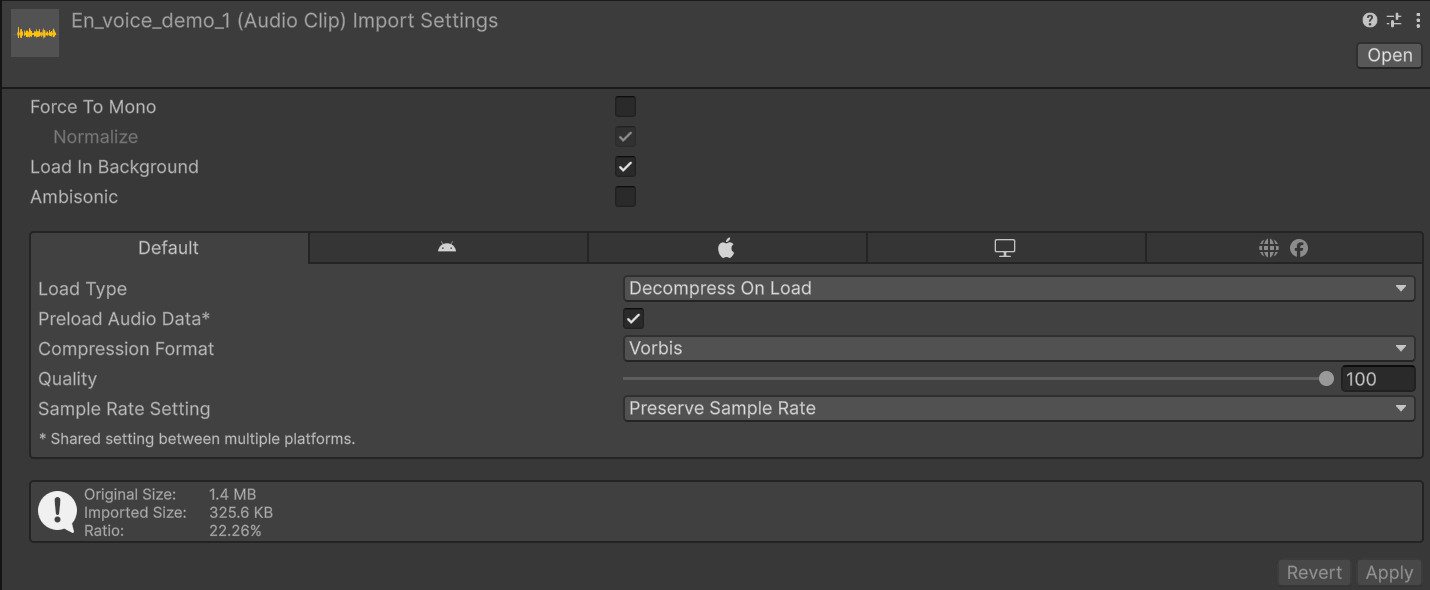
The recommended best practice is to import voice clips as Decompress On Load. That gives you the widest and most complete support: the clip reads everywhere, browser builds included, every setting works as intended, and the mouth starts each shape just ahead of its sound, the way a real mouth does.
Following the playback is a fallback, for a project that has to keep its voice clips in another import.
When a Clip Loads¶
FaceCue stays in sync with the voice however a clip loads, in every mode, and is just as accurate either way. How a clip loads is Unity's choice about memory and loading time, so pick whatever suits the project.
- Preload Audio Data loads the audio with the scene, and keeps it in memory while the scene is loaded.
- Without it, the audio loads the first time its line plays. Load In Background lets the game carry on while it loads, and the line starts a moment later, with its sound.
Following the Playback¶
When the live modes can't read a clip directly, Live Amplitude follows what the character's Audio Source is playing instead, so the mouth still moves with the voice. It is a fallback, and it comes with trade-offs:
- The mouth reads as a touch late, since it can't move ahead of the sound.
- Distance on a 3D sound makes the mouth smaller. The mixer's volume does not.
- Live Viseme can't use it. A Live Viseme line gets Live Amplitude's mouth.
- Browser builds can't follow playback. There the clip is passed over, and the line moves on down the Fallback Chain.
Every line that plays this way is logged, Speech Follows Playback when Live Amplitude is the character's own mode and Speech Fallback Engaged when it took over. Unreadable Clips, on the Speech driver under Audio Import, can turn the fallback off for the whole project.
Clips From Outside the Project¶
A clip loaded at runtime, downloaded, or brought in from an asset bundle built by another project was imported where it was made, so that is where it needs an import the live modes can read directly. When such a clip can't be read, Unity logs an error for it as well, and FaceCue's message says the two are the same problem.
A clip downloaded with Unity's DownloadHandlerAudioClip reads directly as long as its compressed and streamAudio stay false, their defaults. Set either to true and the clip can't be read, yet it still reports itself as Decompress On Load, so FaceCue can't tell and the live modes fail on it. Keep both false for a clip a live mode plays.
In a build, FaceCue recognises the project's own unreadable clips without reading them, and in one rare case a clip from outside the project that matches one of them in everything but its compression is taken for unreadable too. If that happens, turn off Strict Clip Import Check, under Audio Import.