Editing Cues
Correcting a bake in place.
Retiming a cue, fixing a phoneme the recognizer misheard, shaping an emotion, and adding the moments the bake did not find.
Most bakes need nothing. This page is for the ones that do, and the thing to know before any of it is that everything here is undoable and nothing here re-bakes the clip.
Working in the Visemes Row
Three gestures cover almost everything.
| Gesture | What it does |
|---|---|
| Single-click | Scrubs to the start of that cue |
| Double-click | Opens the cue for editing |
| Drag an edge | Retimes that edge |
A drag moves the edge you have hold of and nothing else. It stops against the neighbouring cue instead of pushing it along, so where two cues sit against each other you are moving the boundary between them, and where there is a gap you are growing into it or opening one. A cue will not shrink below a sensible minimum either.

Hold Shift while dragging for fine control. The pointer still leads, but travel is scaled down, so a drag that would have moved a boundary a long way moves it a little instead. It is the difference between placing a cue roughly and placing it exactly.
To move a whole cue instead of one of its edges, hold the action key (Ctrl on Windows) and drag the body. That is deliberately behind a modifier, so an ordinary click still scrubs instead of nudging your timings by accident.
Fixing a Phoneme
Double-click a cue to change which mouth shape it is.
You would do this when the recognizer heard the right word and picked the wrong phoneme inside it, which happens most on unusual names and on words the language does not really own. Changing the shape changes what is drawn from that cue downward, so the Final Output row updates as soon as you commit it.
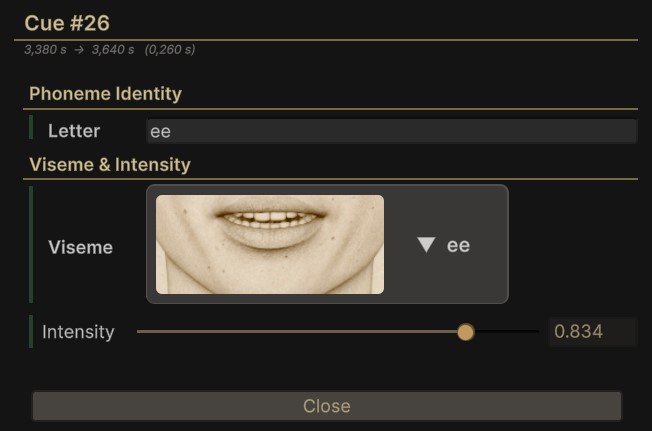
The picker shows the shape rendered on the character you have assigned, so you are choosing by eye and not by name. Intensity below it is how fully that shape is reached, which is the other half of fixing a phoneme that is right but overdone or too weak.
Before changing a cue, it is worth reading it. Hovering shows everything the bake knows about it, which often explains a shape you were about to correct. See Reading a Cue.
Check the Words Row First
If the Words row shows the wrong word, editing the cues underneath it is treating the symptom. The recognizer misheard the line, and the fix is to give the baker a transcript so it does not have to guess. See Recognizers.
Editing cues by hand is for when the words are right and one phoneme inside them is not.
Emotion Cues
An emotion draws as a trapezoid with five points: where it starts, how quickly it comes up, how long it holds, how quickly it goes, and where it ends.
The handles are locked when you arrive, so clicks pass through to the timeline underneath and you can scrub across the row without catching one. Turn Lock Handles off in the row's own settings to grab them.
With them unlocked, each handle moves on its own, so you can make an emotion arrive slowly and leave fast, or hold for most of a line and drop at the end. Shift works here too.
Double-click an emotion to open it instead, which is the route to take when you want exact numbers instead of a shape you dragged.
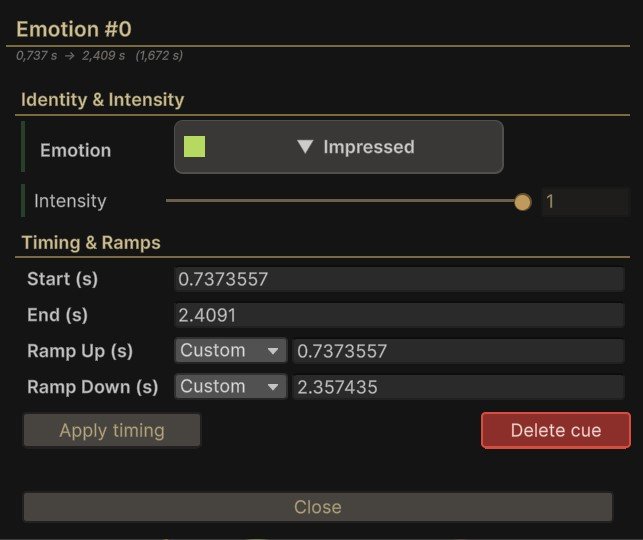
Emotion picks which one it is, from the set FaceCue ships. Intensity is how strongly it plays, which is the dial to reach for when an emotion is the right one and simply too much.
The timings underneath are the same five points the handles move. Both ramps sit on Default until you switch them to Custom, so an emotion you have not thought about comes and goes at a sensible rate on its own. Apply timing commits the four fields together, so you can set them all up before anything moves.
Delete cue removes the emotion, and asks first.
Cognitive Events & Language Spans
Both are edited on the row itself, with no dialog in the way. Right-click the row to add an entry, and drag it to move it.
Cognitive events are single moments with an optional duration. Language spans mark stretches of a clip as being in another language, and they are carried into the cue file whether or not the bake acted on them, so the row shows you where they are either way. See Transcript Tags.
Saving & Undo
Edits go into the cue file as you make them. There is nothing to save.
Undo is Unity's own, so Ctrl+Z reaches every one of these gestures, drags included, and undoing a deletion brings the cue back whole.
A Re-Bake Overwrites What You Fixed Here
Hand edits live in the cue file, and baking that clip again writes a new one. The baker asks before it does, and its overwrite policy is where you say what should happen to clips that already have cues. See The Cue Baker.