Your First Clip
Baking a line so the character can speak it.
The Cue Baker window, a transcript you may not have yet, and the two rules that decide whether the runtime can find what you baked.
The Walkthrough
The second walkthrough bakes a line, registers it, and then opens the Cue Clip Composer to look at what the bake found.
Watch it on YouTube, or see all three on Media.
Choose Where Baking Runs
Do this once, before the first bake, because making a backend active restarts the editor.
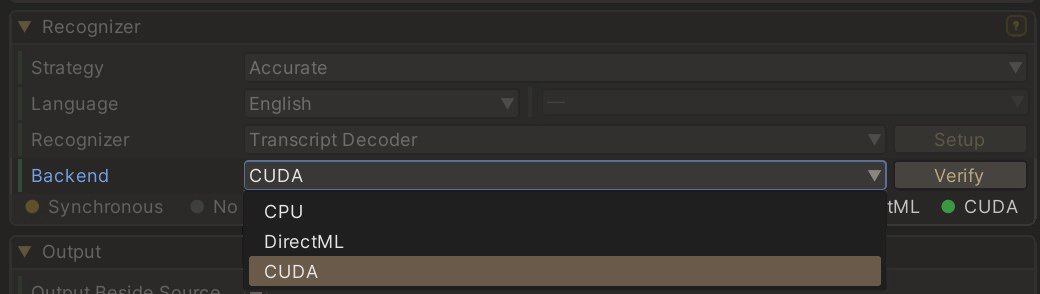
Baking is the part that costs real time, and it can run on the processor or on the graphics card. CPU always works. DirectML and CUDA are the two graphics backends, and on an NVIDIA card CUDA is considerably faster. Only one can be active at a time.
We recommend CUDA if you have an NVIDIA card and DirectML otherwise. You pick one in the Backend dropdown in the baker's Recognizer section, and make it active in the Execution Provider window, which is the step that restarts the editor. Backends covers what each one needs and what happens when one is unavailable.
Open the Baker
, or the tile in the Hub. The left half of the window is one bake, filled in top to bottom: the audio, the transcript, the recognizer, where the output goes, and the button. The right half is settings you can ignore for now.
Point It at a Clip
Mode chooses Single Clip or Batch. Take a single clip for the first one. Drag an audio asset into Audio Clip, or give it a path to a file on disk.

Leave Output Path empty for now. The cue file then lands beside the audio it came from, which is the easiest place to find it.
The Transcript You May Not Have
FaceCue bakes better when it knows what was said. If the clip has no transcript, open Generate Transcript and FaceCue writes one from the audio, and you then bake against that text.
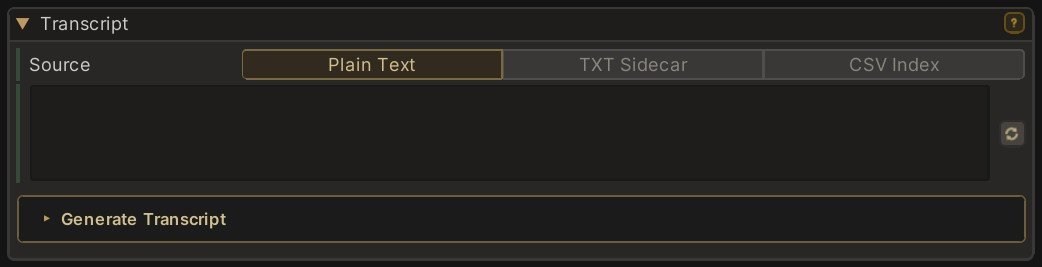
That round trip is worth it. Generating the words first and then baking with a transcript reads the line more accurately than baking straight from audio, because the recognizer is matching sounds to words it already has rather than guessing both at once. Recognizers explains the choice and when baking without a transcript is the better call.
The transcript field is also where transcript tags go. Tags mark a character's mental state and stretches in another language, and they are one of four ways to give a character emotion. Emphasis needs no tags, since FaceCue reads it from the voice. None of this is needed for a first clip, and tags are the thing to read next once one is playing.
Bake It
Pick the language under Recognizer, then press the bake button. What comes out is a cue file beside the audio: instructions the runtime face reads, not an animation clip and not keyframes.
Two Hard Rules
A bake that the runtime cannot find is the most common first-day problem, and it comes down to two things.
The Clip and Its Cues Share a Name
The baker writes <clip name>_phonemes.json beside the audio, and that name is the only link between the two. Where the file sits in the project does not matter. Rename one without the other and nothing loads.
The Cues Are Registered
At play time the character looks the clip up by name, in FaceCue's own registry or in an Addressables group. A cue file sitting on disk that nothing holds is invisible to the runtime.
The baker gets both right on its own. What breaks them is renaming afterwards, and The Naming Rule says what to do when you have to.
Add It to the Registry
Open the Cue Registry window and use Registry if you have none yet. That puts one where the runtime looks for it, and for most projects it is the only one you will ever need. Then add the clip.
A project can carry several registries, and clips can be grouped so that most of them stay on disk until something plays them. Neither matters for a first clip, and both are on The Cue Registry.
Look at What You Baked
The Cue Clip Composer opens a bake the way a score opens a piece of music. Drop the baked clip in and it finds the cue file beside it. Assign the character's brain as well and you see the whole chain, from the sounds the recognizer found to the shapes that land on that particular face.
It is also an editor-time previewer. Turn Preview on and press play, and the character speaks in the scene with no build and no play mode. Forward playback is faithful to what the runtime does, while scrubbing and pausing are approximations, since parts of the performance depend on time actually moving.
You will not need to correct much. The reason to open it on a first clip is to see that cues are a thing you can read and change, rather than a sealed result.
A Clip Read From Disk Will Not Play in a Build
The composer can load a cue file straight off disk, which is how it opens a clip you point it at. Your game cannot. If the clip has not been registered, it previews here and does nothing in a build, and the composer says so and offers to add it.
Next
Playing It Back plays this line at runtime, which is the shortest page of the five.