Renderer Groups
Which of a character's meshes a channel is allowed to write to.
What a Group Is
A character is rarely one mesh. There is usually a head, and often separate eyes, teeth, brows, hair and clothing, and several of those carry their own copies of the face's blendshapes so they can follow it. A renderer group is a named set of those meshes.
Groups are declared on the map, and two things read them:
- Each driver, through the Driven By toggle on every group in its own Renderer Groups section. That is how the Speech driver is kept off a mesh that Emotion still moves. It is set per driver, on the character, and covered under Renderer Groups on a Driver.
- A bind's renderer pin, which narrows one bind to some of the groups. It is rarely needed, and covered in Concepts.
Groups belong to a map, and every channel has a map of its own, so the Speech map's groups are separate from the Emotion map's. OneClick writes the same groups into every map it creates, so they start out alike, and an edit to one map leaves the others as they were.
Most characters arrive with their groups already filled in. You come here when a mesh ended up somewhere you did not want it, or a mesh is moving that should not be.
Renderer Groups on a Driver
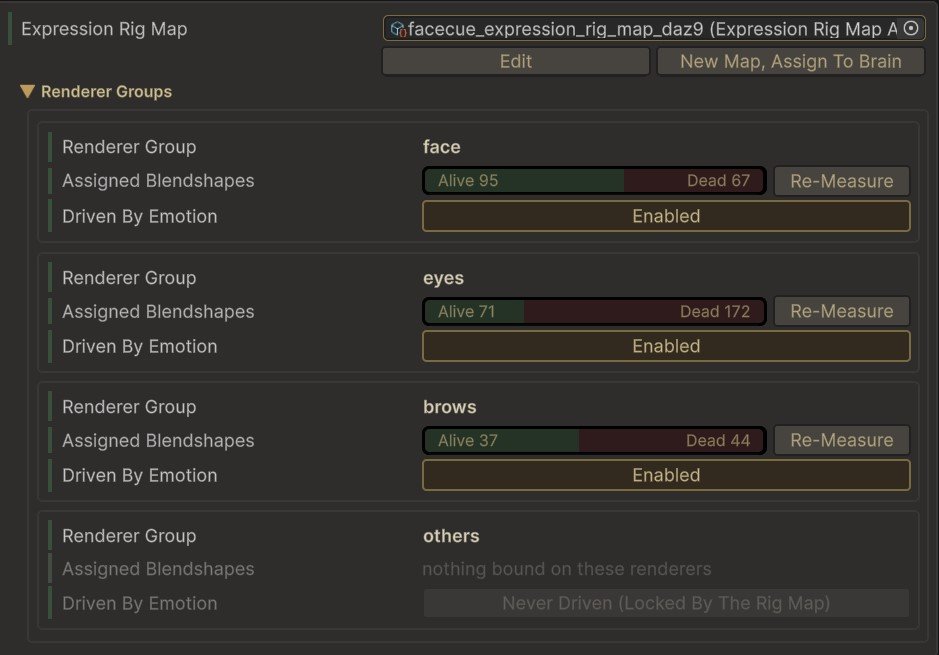
Every driver's inspector carries a Renderer Groups section, listing the groups of the map that driver resolves. It is the other half of a group: the map says which meshes are in it, and each driver says whether it writes to them.
 1
2
3
4
5
6
7
1
2
3
4
5
6
7
- Renderer Groups. One box per group the map declares, in the map's order.
- Renderer Group. The group's ID. Hover it for the rule that matches its renderers.
- Assigned Blendshapes. The blendshapes this driver writes on the group's meshes, split by the Blendshape Census into Alive, Weak and Dead.
- Re-Measure. Runs the census again on this group's meshes only.
- Driven By. Enabled or Disabled. Whether this driver writes to the group at all.
- An empty count. nothing bound on these renderers when this driver writes no blendshape there, no renderers match this group when the group holds no mesh on this character.
- A group the map holds. Always Driven or Never Driven, marked Locked By The Rig Map, and set in Renderer Groups Setup.
Disabled is final for this driver. It keeps this driver off the group's meshes, including binds the map pins to that group, and leaves every other driver as it was. The count follows what the driver writes, so a group switched off reads nothing bound on these renderers.
On the Speech driver, the list follows the Speech Mode: in Live Amplitude it shows the amplitude map's groups. The Brain has the detail.
Renderer Groups Setup
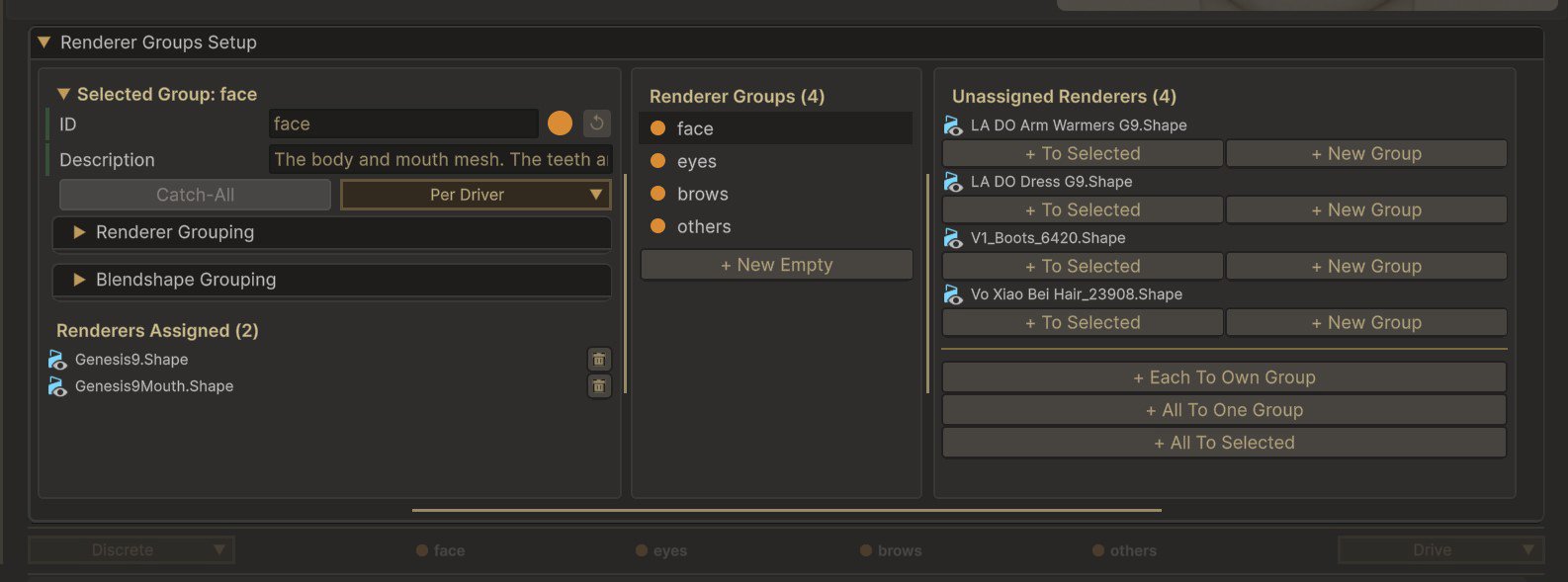
The groups are edited in Renderer Groups Setup, the section above the renderer group chips in the recipe editor. It is folded by default. Its third column scans the bound character for renderers, so it needs a brain to show anything.
 1
2
3
4
5
6
7
8
9
10
11
12
1
2
3
4
5
6
7
8
9
10
11
12
- ID. The group's name. See The Group ID.
- Description. What the group is for, shown when you hover its chip.
- The colour. The group's dot on the chips, the presence dots and this list. The arrow beside it returns the group to the shared accent.
- Catch-All. Makes this the group that takes every renderer no other group claims. See The Catch-All Group.
- The drivers. Per Driver, Always Driven or Never Driven. Whether each driver switches this group in its own Renderer Groups section, or the map holds it on or off for all of them.
- Renderer Grouping and Blendshape Grouping. The rules that match meshes to the group, and trim mesh names off the group's blendshape names. OneClick fills both, and the add buttons in this section write the renderer rules for you.
- Renderers Assigned. The meshes this group names. The bin removes one.
- Renderer Groups. Every group on the map. Click one to edit it, which also selects its meshes in the Hierarchy. Right-click to remove it.
- + New Empty. Adds a group with no renderers.
- Unassigned Renderers. The character's meshes that no group names.
- + To Selected and + New Group. Adds this one renderer to the selected group, or makes it a group of its own.
- The bulk buttons. The same, for every unassigned renderer at once: a group each, one group for all of them, or all of them into the selected group.
Creating a Group
There are two ways to start one.
- + New Empty, under the list, adds a group called
groupwith nothing in it and selects it. Rename it, then fill it from the Unassigned Renderers column with + To Selected. - + New Group, beside an unassigned renderer, creates a group already holding that renderer and named after it.
A new group starts as Per Driver, so every driver writes to it until you switch it off there.
Adding & Removing Renderers
To add a renderer, select the group, find the renderer under Unassigned Renderers, and press + To Selected. + All To Selected adds every renderer in that column at once.
To remove one, press the bin beside it under Renderers Assigned. It returns to Unassigned Renderers.
The Unassigned Renderers column only offers renderers no group names, so moving one between groups is a remove followed by an add.
A Removed Renderer Can Still Be Driven
If the map has a catch-all group, a renderer you remove from its group lands in the catch-all and keeps being driven. See The Catch-All Group.
To remove a whole group, right-click it in the Renderer Groups list and choose Remove group. If binds are pinned to it, you are told how many first, and removing it clears those pins.
The Group ID
The ID is the name the group goes by everywhere: its chip, the presence dots on every bind, the renderer pin menu, and the Renderer Groups section on each driver.
IDs are lowercase. Spaces and punctuation become underscores as you commit, so Upper Teeth becomes upper_teeth. The change applies when you press Enter or click away. An ID another group on the map already uses is refused, and the old one stays.
Renaming a group rewrites every bind pin that names it, so pins follow the rename.
A Rename Resets What the Drivers Chose
Drivers remember which groups you switched off by their IDs. After a rename, each driver treats the group as new and switches it back on. If a driver had the group switched off, open that driver's Renderer Groups section, find the group, and press its Driven By button so it reads Disabled again.
The Catch-All Group
A catch-all group takes every renderer that no other group claims, whether or not that renderer is listed in it. Whatever is left over once the other groups have taken theirs belongs to it, and it is driven like any other group.
It is there so that no mesh falls through. A character whose export adds a mesh FaceCue did not expect still has that mesh driven, rather than having it silently ignored.
Every OneClick Map Has One, and It Is On
Every rig family OneClick supports writes a catch-all into the maps it creates, set to Per Driver and switched on for every driver. On most families it is called others. On ARKit it is face, and it is the only group, because an ARKit character's blendshapes can sit on any mesh.
So unless you have changed it, every driver on a OneClick character is writing to the catch-all.
It Drives Its List, and Every Other Leftover
When OneClick applies, it writes every leftover renderer it finds into the catch-all. So straight after OneClick, the catch-all's Renderers Assigned lists those renderers, and Unassigned Renderers is empty.
Every renderer in that list is driven through the catch-all. So is every other renderer no group claims, whether it is in the list or not. The list does not limit the catch-all, it only shows part of what it takes.
- Adding a renderer to the catch-all with + To Selected moves its name from Unassigned Renderers to Renderers Assigned. It was already being driven through the catch-all, and it still is.
- A renderer that arrives later, from a new outfit or a re-export, shows under Unassigned Renderers. It is driven through the catch-all as well.
- A renderer another group claims belongs to that group, even if its name is still in the catch-all's list.
Turning Catch-All off is what makes the list a limit. The group then keeps driving exactly the renderers listed in it, and the leftovers it does not list stop being driven.
A bind pinned to the catch-all follows the same rule. It reaches whatever is left over on the character, and keeps up as meshes come and go.
The place to see what the catch-all is reaching is a driver's own Renderer Groups section, where its census bar counts the blendshapes found on every mesh it took.
Leftover meshes are rarely inert. A prepared Daz or Character Creator figure often carries copies of the face's blendshapes on its outfit, hair and accessories, so they can follow the face. The Blendshape Census drops the copies that move nothing, but the live ones a bind matches are driven through the catch-all like any other blendshape on the face.
Auditing It for Performance
Every live blendshape the catch-all reaches is written whenever the face moves it, by every driver that has the catch-all switched on. Some of that is worth paying for: eyelashes, a beard or a collar that should follow the face. Much of it is not. See Performance for how blendshape count sets a character's cost.
To trim it:
- Run the Blendshape Census on the brain, so the dead copies are already out of the count.
- See what the catch-all reaches. A driver's Renderer Groups section shows its census bar, and hovering the catch-all's chip in the recipe editor lists its renderers and how much of each one moves.
- Move the renderers worth keeping into groups of their own. Remove each from the catch-all's list with the bin, so it appears under Unassigned Renderers, then press + New Group or add it to an existing group with + To Selected.
- Stop the catch-all driving the rest, on the drivers that do not need it or on the whole map. The ways to do that are below.
Turning It Off
There are four ways, and they reach different distances.
| Where | What you do | What it reaches |
|---|---|---|
| On a driver | Switch Driven By off on the catch-all, in that driver's Renderer Groups section. | That driver alone, on that character. Every other driver keeps writing to it. |
| On the map | Set the catch-all to Never Driven. | Every character using this map, on this channel. The group stays the catch-all, and no driver can switch it back on. |
| On the map | Turn Catch-All off, then remove the renderers listed in the group with the bin. | Every character using this map, on this channel. Leftover renderers belong to no group, and no driver writes to them. Turning Catch-All off alone keeps every renderer the list names still driven. |
| On the map | Remove the catch-all group. | Every character using this map, on this channel. Leftover renderers belong to no group, and the group disappears from every driver's list. |
Turning Catch-All off asks you to confirm, and the prompt can be told not to ask again.
If a driver's toggle for the catch-all reads Locked By The Rig Map, the map is holding it. Set it back to Per Driver in Renderer Groups Setup first.
When the Catch-All Is the Only Group
A map that declares no groups at all writes to every renderer on the character. So on a map whose only group is the catch-all, as with ARKit's face, removing it turns nothing off. Setting it to Never Driven goes the other way and turns the whole channel off, because every renderer is in that one group. On a map like that, use the next approach.
If what you want is control over one particular mesh rather than all the leftovers, give that mesh a group of its own with + New Group, then switch that group off on the drivers that should leave it alone. The catch-all keeps everything else.
Keep One Catch-All per Map
A second one does not split the leftovers with the first. Both take all of them, so switching one off on a driver changes nothing while the other is still on.