Setup
What the Eyes driver needs to know about a rig before it can look, how the setup finds it, and the few choices that are yours. Most of this is done for you. The page is here so you know what was done, and what to check when a character looks wrong.
Done Once, by the Wizard
A character that came through the OneClick Wizard is already set up. The wizard runs the same Auto Setup the Brain's Setup section offers as one button, and the Eyes driver's own Auto-Setup is one of the steps inside it. Everything below is what that step decided, laid out the way the driver's inspector draws it, so you can read this beside the component.
The Eyes driver's inspector opens with References and Renderer Groups, which are the same on every driver and are covered on The Brain. Then Mode, then Setup, then Gaze Tracking, which is where the engine and its behaviour live.
Mode
One switch. Eyes Mode is Active or Disabled. Disabled turns tracking off entirely and leaves any other eye-look system on the character to run on its own, which is the setting for a rig you are driving some other way.
Bones & Blendshapes
Eyes are moved one of two ways, and the setup picks by what it finds on the rig.
Bone turns the eye bones, and it is the usual choice for a rig that has them. Blendshape drives the look blendshapes instead, for a rig with no eye bones, or to put a rig that has them onto its blendshapes anyway. The choice is the Eye Gaze row under Setup, Eyes, and it is set for you from whether eye bones were found. Whichever you pick, the other is held off, so the eyes are never driven twice.
A rig on Blendshape that also carries eye bones has one more row. Hold Eye Bones At Rest pins the bones so an animation moving them does not show through the gaze blendshapes. Turn it off only if you want an animation to pose the bones as well.
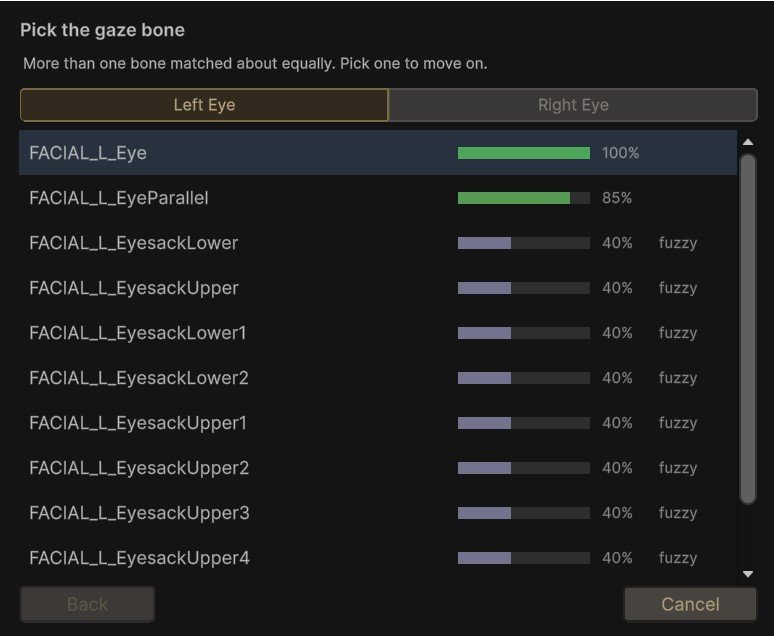
Finding the eye bones is a guess about names, and on a detailed rig several bones can match about equally. When that happens the setup stops and asks, one eye at a time, showing what it found and how well each matched.
Auto-Setup
The chain below the head, worked out from the rig, in one section.
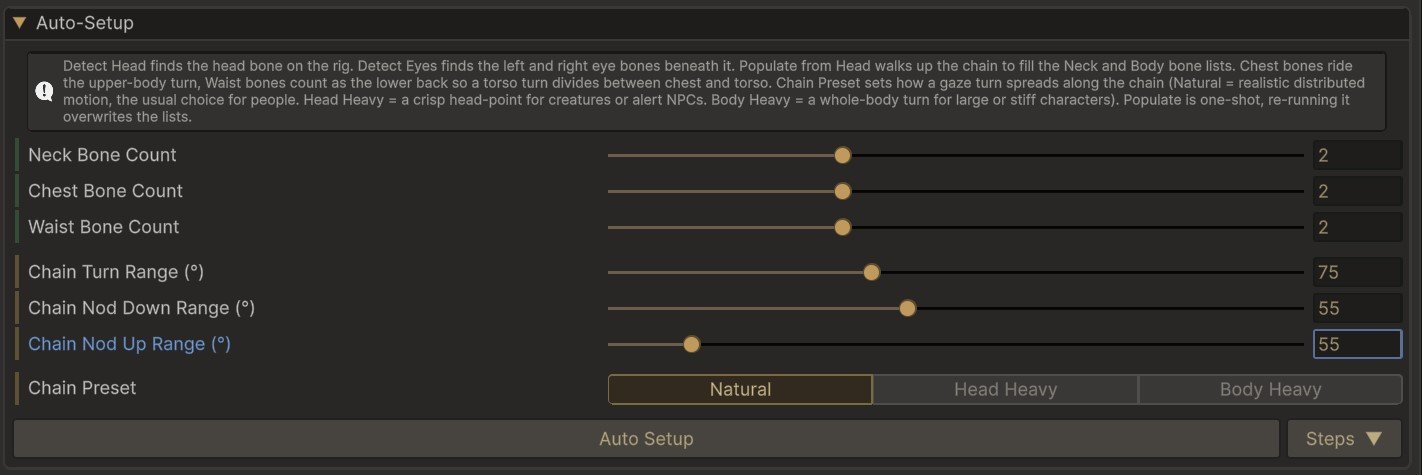
The three counts say how the chain is shaped. Neck Bone Count is how many bones sit between the head and the chest. Chest Bone Count and Waist Bone Count divide the trunk: chest bones ride the upper-body turn, waist bones count as the lower back, so a body turn divides between the two. Set them to what the rig has, and the setup walks up from the head to fill the lists. The OneClick Wizard fills them in for you, for the rig families it knows and for generic ARKit rigs, and never counts the hips as part of the trunk.
Auto Setup does the whole thing. The Steps menu beside it runs one part at a time, in order: Detect Head finds the head bone, Detect Eyes finds the two eye bones beneath it, Populate from Head walks the chain to fill the neck and body lists, and Detect Which Way The Bones Face reads each bone's facing from the rig's current pose. Populate is one-shot, so running it again overwrites the lists.
Worth Checking on Your Own Character
FaceCue generally picks these bones for you. Every character is built a little differently, though, and one whose proportions are far from average may turn or breathe a little differently than you expect. So of everything in setup, where the chest ends and the lower back begins is the part worth checking on your own rig, along with the bones the breath uses. Watch a turn and a few breaths. If the body bends in the wrong place, adjust the counts and run Auto Setup again.
Chain Preset sets how a turn is shared along the chain, Natural for people, Head Heavy for a crisp head-point, Body Heavy for a whole-body turn, and it is described on The Body. The chain's turn and nod ranges, at the Advanced tier, say how far the whole neck can go, and the driver tells you when a range is past what people can do, which is fine for a creature.
Set Up the Trunk Even If You Switch It Off
You can keep the body still, by turning its participation off or setting its share to zero, and still want the chain filled in. Biomechanical reads the trunk to know which way the character is facing, and judges how far the head has turned against it. Without body bones it has a poorer sense of the body on most rigs, and its looks are judged less well. The lean back from something too close moves those bones too.
So if the rig has a trunk, let Auto-Setup fill it, then switch the body off on The Body if you do not want it to move.
The Rest of Setup
Below Auto-Setup the Setup section carries one group per part of the chain, Eyes, Head, Neck and Body. Each holds the bones the setup found, which way each faces and what its up is, and the limits of how far it can turn. All of it is detected, and none of it needs a hand on a rig that was set up cleanly. On a Basic inspector it reads as what the setup found, and the controls to change it appear at Advanced. It is there so that when a character looks somewhere wrong by a fixed amount, you can see which bone's frame is off and correct it.
The Eyes group also holds the eyes' resting state. Real eyes rest a little downcast rather than dead level, and up close the difference shows, so the eyes can settle slightly below head level when nothing asks otherwise.
Behavior
Under Gaze Tracking, the Behavior section holds the everyday choices about how the eyes look that do not belong to either engine.
Conversant State is whether the eyes work out for themselves that the character is talking, listening or idle. Left on Auto it takes the answer from the brain, and the fixed states pin it, which is useful for testing. What talking and listening change is on At Rest.
Eye Convergence is how the two eyes aim relative to each other. Converge points each eye at the target on its own, so they cross slightly on something close, the way real eyes do. Parallel turns both together and never crosses, a cleaner, stylised look, and the safe choice for a rig whose eyes were built to move as a pair. It shows up within arm's reach and nowhere else. On a Blendshape rig it is always Parallel, because the look blendshapes move both eyes as one.
The Engine
The choice between Biomechanical and Simple is the Engine row of the Engine section, further down Gaze Tracking. The sections that belong to each engine appear only while that engine is selected, so flipping the row is also how you inspect the other engine's settings.
Switching Engines From Code
A character does not have to keep one engine for its whole life. A lead can run Biomechanical in a conversation and drop to Simple when the crowd scene starts, and both ways of doing that are on the Eyes driver. In code, Simple is called Cascade.
The smooth switch is the one to use while the character is looking at something. It hands the current look over to the new engine, so the head, neck and eyes keep their pose across the switch and glide any difference between the two engines' answers instead of stepping to it. It takes effect on the driver's next tick, and asking for the engine already in use does nothing.
public void SwitchChainDistributionSmoothly(EyesDriver.ChainDistribution mode)
| Parameter | What it does |
|---|---|
mode |
The engine to switch to: Biomechanical, or Cascade for Simple |
var eyes = character.GetComponent<EyesDriver>();

// the crowd scene starts: keep the look, lose the cost
eyes.SwitchChainDistributionSmoothly(EyesDriver.ChainDistribution.Cascade);

// back in close-up
eyes.SwitchChainDistributionSmoothly(EyesDriver.ChainDistribution.Biomechanical);
The immediate switch is the property behind the inspector row. Assigning it stops any standing look, hands every bone back to the animation, and starts the new engine cold on the next tick, which is visible while the character is looking at something. It is the right call between scenes, or on a character that is not looking at anything yet, and it cancels a smooth switch that has not landed.
public EyesDriver.ChainDistribution ChainDistributionMode { get; set; }
eyes.ChainDistributionMode = EyesDriver.ChainDistribution.Cascade;
If another system is moving the chain's bones at the moment of a smooth switch, the new engine fades in over it instead of taking over at once, so the two never fight.
Output Conditioning
The last section under Gaze Tracking, and the one to leave alone. Enable smooths the final motion and caps how fast it can move, so a look reads clean instead of stepping or snapping. Off is a diagnostic that shows the raw motion straight from the engine, with no smoothing or speed limit, which can look jittery. Inside it, the Rate Limiter caps how fast each part can turn, so the look never whips faster than a person could. It only steps in on sudden jumps, like a target that teleports, and leaves normal motion untouched.