Timeline
Sequencing a performance in Unity's Timeline: how a voice line on an ordinary audio track drives the face, and the three FaceCue tracks for what audio does not carry.
Audio Clips
Everywhere else in FaceCue, a character mouths whatever its Audio Source plays: it recognises the clip, finds the cues baked for it, and follows along. Unity's Timeline plays audio differently. An Audio Track plays its clips through the source without telling it which clip is playing, so on its own a character cannot tell which line it is hearing.
There was a choice here. FaceCue does ship a track that plays cues on its own, with no audio involved, and a cutscene could be built from those laid beside the audio clips. But that means timing every cue clip against its audio by hand, which is tedious, and the result is never as good as a face following the audio itself. So the answer is the Director Watcher: with one component beside the Playable Director, a voice line dropped on an audio track drives the face exactly as it would anywhere else, and the FaceCue tracks are kept for what has no audio to follow.
The Director Watcher
One component, added beside a Playable Director, and every character whose voice plays on that Timeline's audio tracks is driven from it. Its header says what it does: it drives every bound character's face from these Timelines' audio tracks. A multi-character cutscene needs exactly one.
It finds the characters for you. Every character whose voice Audio Source is bound on a non-muted audio track is discovered and driven, so a line dropped onto a track starts moving the right mouth with no wiring. What the character does with the line is exactly what it does with a line played through its own Audio Source: baked cues for the clip if there are any, and the live modes when there are none, in the order the Speech driver falls back through.
Two references, under References:
- Directors: the Playable Directors whose Timelines drive voices. Leave it empty to use one on the same object. List the directors that directly own the audio tracks.
- Speakers: the characters this watcher may drive. Leave it empty and it drives every character it finds. Fill it in to limit the watcher to just those.
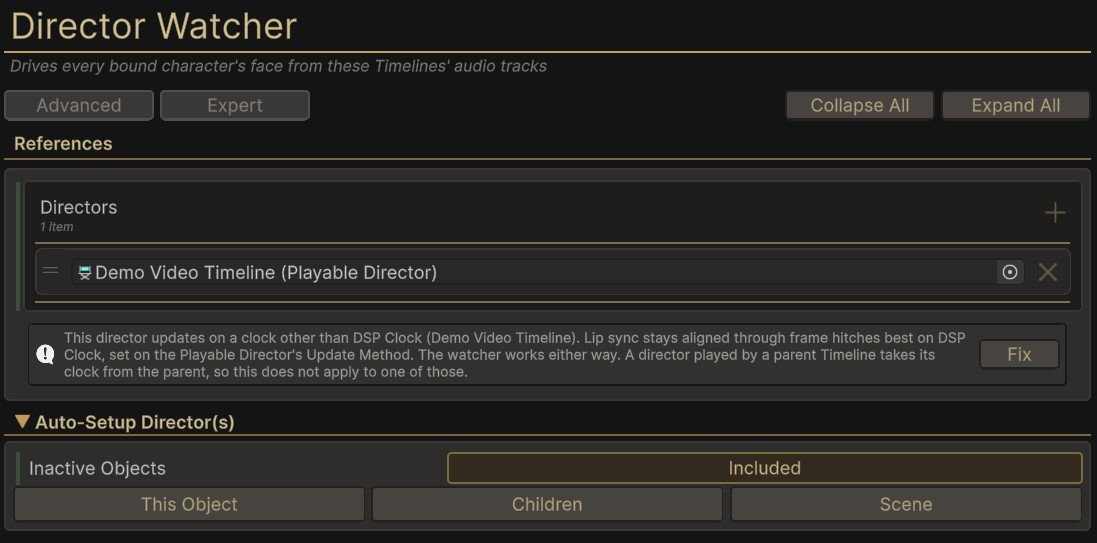
One watcher can hold several directors, and they do not have to be related. Unrelated cutscenes across a scene can share a single watcher rather than carrying a component each. It costs the same either way, so the list is there for convenience: the work happens per driven character, not per component, and a director that is not playing costs nothing whether it sits alone or in a list of 20.
The inspector's Internal Status lists the directors being watched and, for each driven character, the clip it is on and where in it, and what the live analysis can do with that audio. A line that reads "clip needs Decompress On Load" is telling you the audio was imported in a way the live analysis cannot read at a position, which only matters when there are no baked cues for it.
Filling the Directors List
Auto-Setup Director(s) fills the list for you, with three buttons for the three scopes worth having: This Object takes the directors on the watcher's own object, Children takes those and everything under it, and Scene takes every director in the scene. Each adds to the list rather than replacing it, so the scopes can be combined and a hand-picked entry is never lost.
Inactive Objects above them decides whether Children and Scene reach directors on objects that are switched off. A cutscene kept disabled until it runs is the ordinary case for that, which is why it is a visible choice rather than an assumption.
Nested Timelines
A Timeline can play another Timeline, through a Control track, and the characters speaking in that nested Timeline need driving too.
Drive Owned Nested Timelines on the parent's watcher does it. The watcher follows the Control clips the watched Timelines play and drives the directors it finds on the other end, so a cutscene built out of nested Timelines needs no setup beyond the one watcher at the top. Nesting Depth beside it is how many Timelines deep to follow when a nested Timeline plays another one. It is a safety limit rather than a tuning dial, and following further costs nothing while a cutscene runs.
This reaches nesting that does not exist until the cutscene runs. A Control clip can create its prefab at play time and drive the director on that instance, and a watcher following the clips finds it the same as any other, where a list filled in the editor never could.
Not on Top of a Watcher the Nested Timeline Already Has
Turn it on only when those nested Timelines do not carry watchers of their own. If both are on, the parent's watcher and the child's each drive the same character, and they fight over the mouth.
Pick one shape per cutscene: a watcher at the top with this on, or a watcher on each director with this off.
An adopted director never appears in the Directors list, since nothing put it there. Internal Status is where to see what adoption found: each watched director is marked listed or nested.
Set the Director to DSP Clock
A Playable Director's Update Method decides which clock the Timeline runs on. Lip sync stays aligned through frame hitches best on DSP Clock, and the watcher says so in place when a director is on anything else. Its Fix button sets every director the note lists to DSP Clock in one click. It works either way. This is about how well it holds up under load.
It does not apply to a nested director. One played by a parent Timeline takes its clock from the parent, so its own Update Method is not what the lip sync is riding on.
The Auto Watcher
An experimental second shape, attached to the character instead of the director: every Playable Director in the scene whose Timeline plays this character's voice drives the face, with no per-cutscene setup. It finds directors by scanning the scene at enable and every few seconds after, so a Timeline created and played between scans starts driving up to that late. Cutscenes that need frame-exact pickup should use the Director Watcher. Its inspector header carries the word Experimental for that reason.
How Lines Share the Mouth
Both watchers drive the face the same way once a line is playing, and four situations are worth knowing about, because what happens in each is chosen rather than incidental.
Two Clips Blended on One Character
When two of a character's clips overlap on the Timeline, in a crossfade or on two audio tracks, the mouth follows one of them at a time. It follows the clip that is louder in the blend, so in a crossfade the handover lands where the two curves cross. The mouth is not reset at the handover: the new line starts from the shape the old one left, so the change reads as one small movement rather than a snap. A hard cut with no blend hands over at the cut, the same way.
So blend, but do not overdo it. The face does not crossfade across the whole overlap. It switches once, near the middle, and smooths the switch. A long blend buys nothing on the face, and a short one is all the mouth needs.
Two Timelines on One Character
Each Playable Director has to be watched by something: its own watcher, one watcher holding both of them, or the Auto Watcher on the character. When two Timelines play the same character's voice at once, the line that started most recently owns the mouth. When it ends, the other Timeline's line, if it is still playing, takes the mouth back from wherever it has got to.
A Line Played While the Timeline Runs
A line your game plays on the character's own Audio Source, from a dialogue system say, follows the same rule as a second Timeline. It started later, so it takes the mouth. When it ends, the Timeline's line takes the mouth back. The same holds the other way round: a Timeline clip starting during a played line takes over, and hands back when it ends.
Pausing and Scrubbing
Pausing the Timeline pauses the face where it is, and scrubbing moves it with the playhead. Switching off the Playable Director component holds the face where it is as well, since Unity treats that as a pause. Between clips the character is not speaking, and the mouth settles the way it does after any line.
The FaceCue Tracks
Four tracks, all under FaceCue in the track menu, and all bound to the character's FaceCue Brain. None of them needs a Director Watcher. Bind a track to the character's brain and it plays. Each one drives a channel the way a script would, and each follows that channel's own rules for what happens when two things want it at once.
Each clip names what it plays on the track itself: its cue file or registry clip, its emotion and intensity, its look target, or whether it looks away. A phoneme clip that has not been given one yet reads (None), and an emotion clip reads (No emotion) or (No cue file), so an empty clip is easy to spot.
![The timeline behind the headline video: dialogue clips on an audio track, a gaze track holding the look on the camera and then on a moving target, and emotion clips such as Tender [0.7], Happy [0.4] and Focused [0.7], each drawing its rise and fall](../assets/timeline-demo.95fcedd2.jpg)
Phoneme Cues
The mouth from baked cues, with no audio involved. This track is kept for the case where there is no audio to follow and none is wanted: a silent character in an interactive novel, a line mouthed under music, a face in a scene with no voice track at all. For a line that has audio, put the audio on an audio track and let the watcher drive the face. Lip Sync Without Audio covers the whole subject.
A clip is a span of cues the character mouths while the playhead is inside it, and it takes its cues from one of two places: a Cue File, the .json the baker wrote for the line, or a Registry Clip Id, a clip name resolved through the character's normal cue registry chain. The inspector's Validate Cue Source checks whichever is in use.
Clip In and Speed are honoured, so a clip can be trimmed or retimed and the cues follow.
Blending and easing work the way they do for audio clips under the watcher. The mouth follows one clip at a time, and a clip's blend weight decides only which one: where two clips crossfade the handover lands where the curves cross, and the new clip starts from the shape the old one left. An ease-in or ease-out on a clip does not fade the mouth, because there is no such thing as a half-strength phoneme. It only moves the point at which the clip wins or loses against a neighbour. Against anything else that wants the mouth, a voice line through the audio path or a script's own call, the most recently started utterance wins and hands back when it ends.
Emotion
An emotion the character plays while the playhead is inside the clip. Plays chooses between two things. Emotion plays one emotion across the clip at the set Intensity, rising and falling over the clip's own ease lengths. Cue File plays a baked emotion cue file at the clip's local time, Clip In and Speed honoured.
Emotion Blend and Repeat Blend let one clip choose how its emotion meets others, in place of the character's own settings. On a Cue File clip, Repeat Blend also decides how the recording's own cues combine where it holds the same emotion twice. Leave them on the character's setting unless this one moment wants a different feel.
Emotions add up. Clips on this track layer with each other, with a playing line's own emotion, and with anything your code plays, rather than replacing them.
Leaving a Mood
Turn on Leave Residual Mood and the clip leaves a faint trace of its emotion on the face once it ends, the residual mood a spoken line leaves behind. It arrives as the clip's emotion falls away, so the face goes straight from the clip to the mood. A clip the playhead leaves early, or whose Timeline stops partway through it, follows the character's setting for an interrupted Timeline clip, and a clip that runs into the next one leaves nothing, since the next clip has the face by then.
Any emotion clip starting clears a mood still standing, whether a line or another clip left it, the way a new line does.
Rise and Fall
A clip's rise and fall are its ease handles. Their lengths are how long the emotion takes to come up and how long it takes to go away, so it arrives on a clip the way it does on a spoken line, each part of the expression in its authored order and on its own curve. Only the length counts. A curve shaped by hand on a handle is not read, because the emotion already carries a curve for each of its expressions.
A new clip starts from its emotion's own timing, and the clip's inspector shows what the emotion asks for beside what the clip holds. Set one by hand and it stays where you put it, through later changes of emotion. Restore Defaults takes the emotion's timing again, and Refresh From Emotions on the track menu does it for a whole track.
Overlapping Clips
Overlapping clips are both on. Two clips over the same stretch are both on the face at once, combined rather than traded one for the other. A handover from one emotion to a different one carries across instead of dipping through the middle. Two clips of the same emotion combine as one, and where they crossfade the face dips through the middle, the way two audio clips crossfading do, unless the clip's Repeat Blend asks for something else. See Overlapping Emotions.
Timeline's crossfade does not fade the emotions. Drag one emotion clip over another and Timeline draws its usual crossfade across the overlap, but neither emotion follows it. Each clip keeps the rise and fall it drew on its own, and the two are combined on the face.


When a clip reaches its end, whatever it still holds finishes its own fall rather than cutting. If the playhead jumps out of a clip partway through, or the Timeline is stopped there, the emotion clears at once, and the Emotion driver's Interruption settings can have it ramp down or play out instead. A Timeline counts as stopped whether it is stopped from code, switched off with its GameObject, destroyed, given another Timeline, or simply ends before the clip does. Rebuilding the Timeline from code while keeping the playhead where it was does not count, and the emotion carries on. Scrub back into a clip while its emotion is still leaving and the same emotion returns, rather than a second one starting beside it.
What a Clip Draws
Each clip draws what it plays. An Emotion clip draws the emotion's shape across the clip. A Cue File clip draws the recording: every emotion in the file as its own outline in that emotion's colour, named where the name fits, with the clip's fade drawn over it. Hover the clip for the full list of its emotions and their times. A file that cannot be read, or that names no emotion the character knows, carries Timeline's warning instead.
Right-click a clip or its track and open FaceCue › Clip Shape to switch Emotions Timing and Expressions on and off. The same two switches sit on the FaceCue Clips panel in the Scene view, which appears while an emotion clip is selected.
Gaze
Where the character looks while the playhead is inside the clip, as a Look Target in the scene. Drop anything from the scene anywhere on the clip's inspector, or pick it in the field. The target is remembered by the scene's Playable Director rather than by the Timeline, so the same Timeline played from two directors can aim each character at something different.
The gaze track only blends. A look has no inner timeline to trim or retime, so Clip In and Speed mean nothing here.
Blending and easing decide only which clip has the look. The character looks at one thing at a time, so where two clips crossfade the handover lands where the curves cross and the eyes travel to the new target the way they travel to any new target. An ease-in or ease-out does not make a look weaker or partial. It moves the moment the clip wins or loses. Two things are worth authoring on purpose:
- A clip with no target reads as looking at nothing. It drops the look for as long as that clip is winning, and it is the way to author a deliberate look away inside a run of looks while keeping the ability to crossfade into it.
- A gap between clips releases the track's claim, and the character stops looking and eases off exactly as it would had your game cleared the target, lingering a moment and coming back the way it always does.
A Gaze clip is an override on the look target, so it takes the look over from the character's look source for as long as it plays. The latest override always wins, and nothing is stacked:
- A clip that starts replaces any look your game had set. When the clip ends, the character goes back to its look source, not to the look your game set before.
- A look your game sets during a clip replaces the clip's. The track takes the look back at its next clip.
- A clip ending only lets go of its own look. If your game took the look over in the meantime, it keeps it.
The track also never drops a look instantly. A cut that has to drop the look with no easing at all wants the Eyes driver's immediate release, fired from a Timeline signal, which hands the head and eyes straight back on purpose.
Cognitive Events
What the character is thinking, placed exactly. The track holds one kind of clip today, Thinking. For as long as the playhead is inside a Thinking clip the character thinks, the way a <Thinking> tag makes it think on a spoken line, and it looks away: the eyes leave as the clip starts and come back as it ends. Mental State covers what thinking does to a face.
Look Away off keeps the thinking and leaves the eyes where they are. Such a clip reads Thinking (Eyes Stay) on the track.
Shaping the Look
The clip's inspector sets the look a section at a time, and each section either takes the character's own Thinking look-away settings or sets its own. Switch a section's Taken From to This Clip to set it.
| Section | What it sets |
|---|---|
| Direction | Up or down, and whether the look also goes to one side, and which. |
| Size | How far up or down the eyes go, and how far to the side. A sideways size set here sends every look to a side. |
| Head | How much the head turns along with the eyes, and how far the eyes go before the head takes the rest. |
A section left on Character's Setting picks its values the way a marked moment in a line does. The same Timeline picks the same look every time it plays, however the playhead arrives in the clip, and a clip moved along the track picks a new one.
How a Thinking Clip Plays
- It plays in play mode. Pausing the Timeline holds the look where it is, and the eyes come back when the playhead leaves the clip, at any Timeline speed. Rebuilding the Timeline from code while keeping the playhead where it was does not interrupt it.
- A clip has the thinking to itself. A Thinking tag on a line playing under the clip adds no second look-away and does not look away once the clip ends.
- Clips do not blend or ease. Where two overlap, the later one takes over the look, and the first one ending does not bring the eyes back early.
- A new look target ends the look-away early, as it does any other, so a Gaze clip that starts inside a Thinking clip ends its look. Start the Gaze clip before the Thinking clip, or after it.
- The character's Thinking look-aways have to be on, under Look-Aways on the Eyes driver. Switched off, the clip brings the thinking without the look-away.